App Drawer & Dock

Cocoon isn’t just for retro games — it can also be your Android launcher. The App Drawer gives you access to every app on your device, and the Dock puts your favorites one button press away.

The Dock

The dock is the row of icons at the very bottom of your screen. It has 5 slots:

The dock with App Drawer, Brave, Solid Explorer, Playstore and one empty slot

SlotWhat it does
Slot 1Always the App Drawer — opens the full list of your apps
Slots 2–5Your shortcuts — assign any Android app you want

Adding Apps to the Dock

  1. Navigate down to the dock (D-pad down from the grid).
  2. Move to an empty slot.
  3. Press A (Confirm) to open the app picker.
  4. Choose any installed app — it’s now a one-press shortcut!

Removing a Dock Shortcut

  1. Navigate to the dock slot you want to clear.
  2. Press YClear Slot.

Dock Appearance

You can show or hide the dock’s background panel at Settings → Appearance → Dock Background. Hiding it gives a cleaner, more minimal look.

The App Drawer

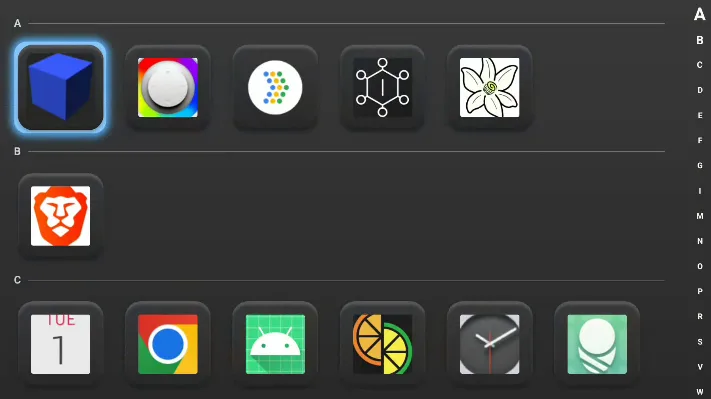
The App Drawer is a full-screen overlay that shows every app on your device, organized alphabetically.

The App Drawer with alphabetical app list and A-Z quick-scroll sidebar

Opening the App Drawer

  • Press A on the first dock slot (App Drawer icon), or
  • Navigate to the dock and select it.

Finding Apps

Apps are sorted A–Z with letter headers. On the right side there’s an alphabetical sidebar — think of it like the quick-scroll bar in your phone’s contacts app.

Launching Apps

  1. Navigate to the app you want.
  2. Press A to launch it.

You can also choose which screen to launch the app on (useful on dual-screen devices):

  1. Highlight the app.
  2. Press YLaunch → pick Top Screen or Bottom Screen.

Adding Apps to Your Grid

Want to put an Android app right on your game grid? Easy:

  1. Open the App Drawer.
  2. Find the app.
  3. Press YAdd to Home.

The app appears as a tile on your grid, just like a game. Android app tiles show the app’s icon and work with your grid’s icon style settings (roundness, scale, etc.).

Tips

  • The dock works with all the same controller navigation as the rest of Cocoon — D-pad left/right to move between slots, up to go back to the grid.
  • Android app tiles on your grid can be moved, placed in folders, and customized just like game tiles.
  • Context menu on dock apps: Press Y on a filled dock slot to see options like Launch and Clear Slot.