
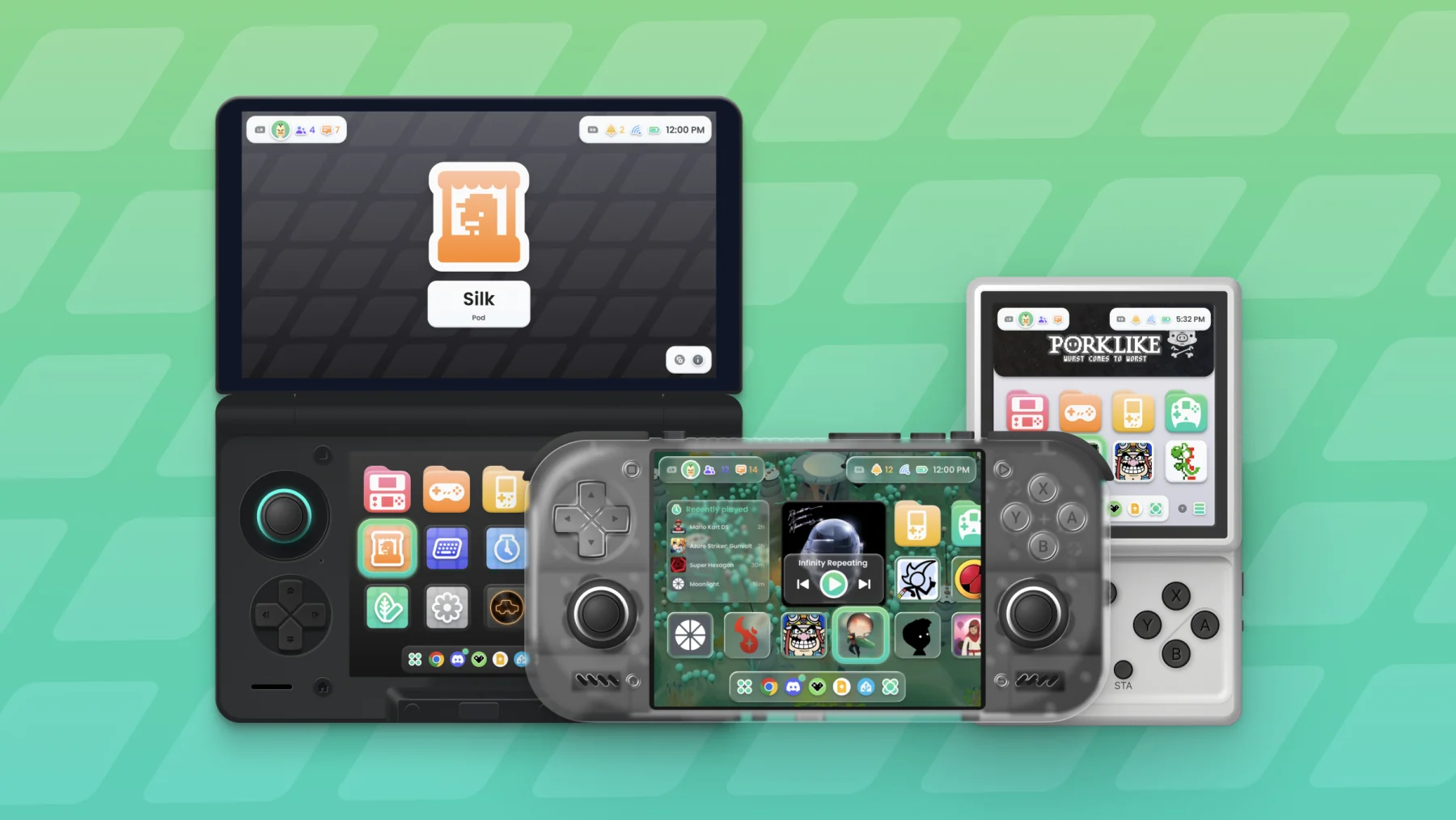
Cocoon 3 is here! Project Metamorphosis is a complete overhaul in look and functionality, built around consistency, intuitive UX, and putting it all into a fun UI. We’ve gotten a lot of feedback throughout the development of Cocoon, and it was clear that the old design was in need of a revamp. Along with the new look, we’ve added a ton of new features!
Download Cocoon 3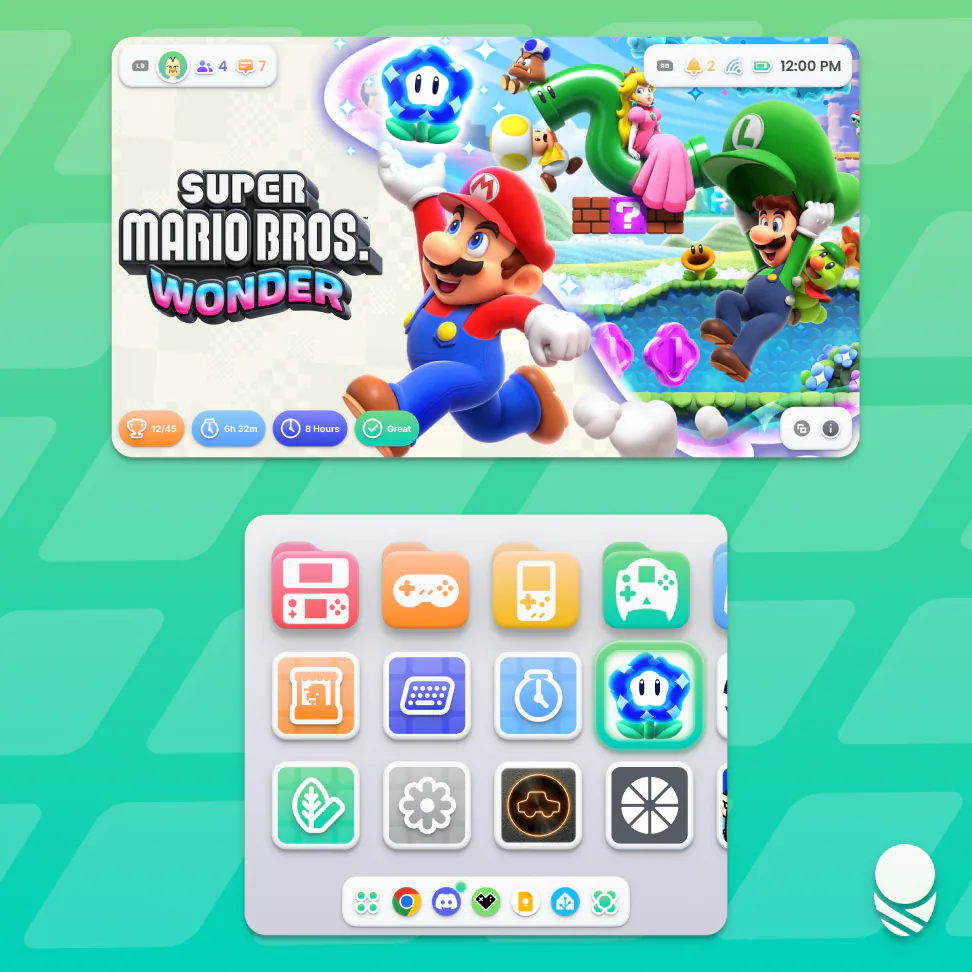
A New Home Screen
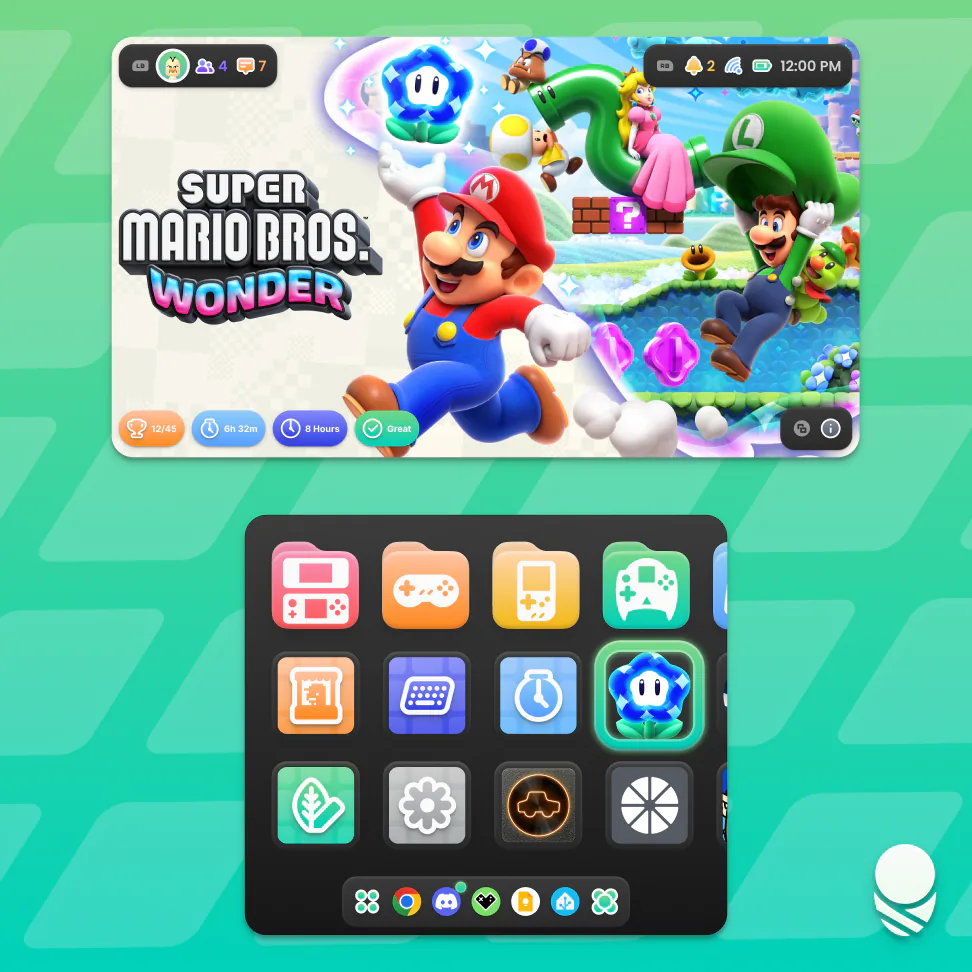
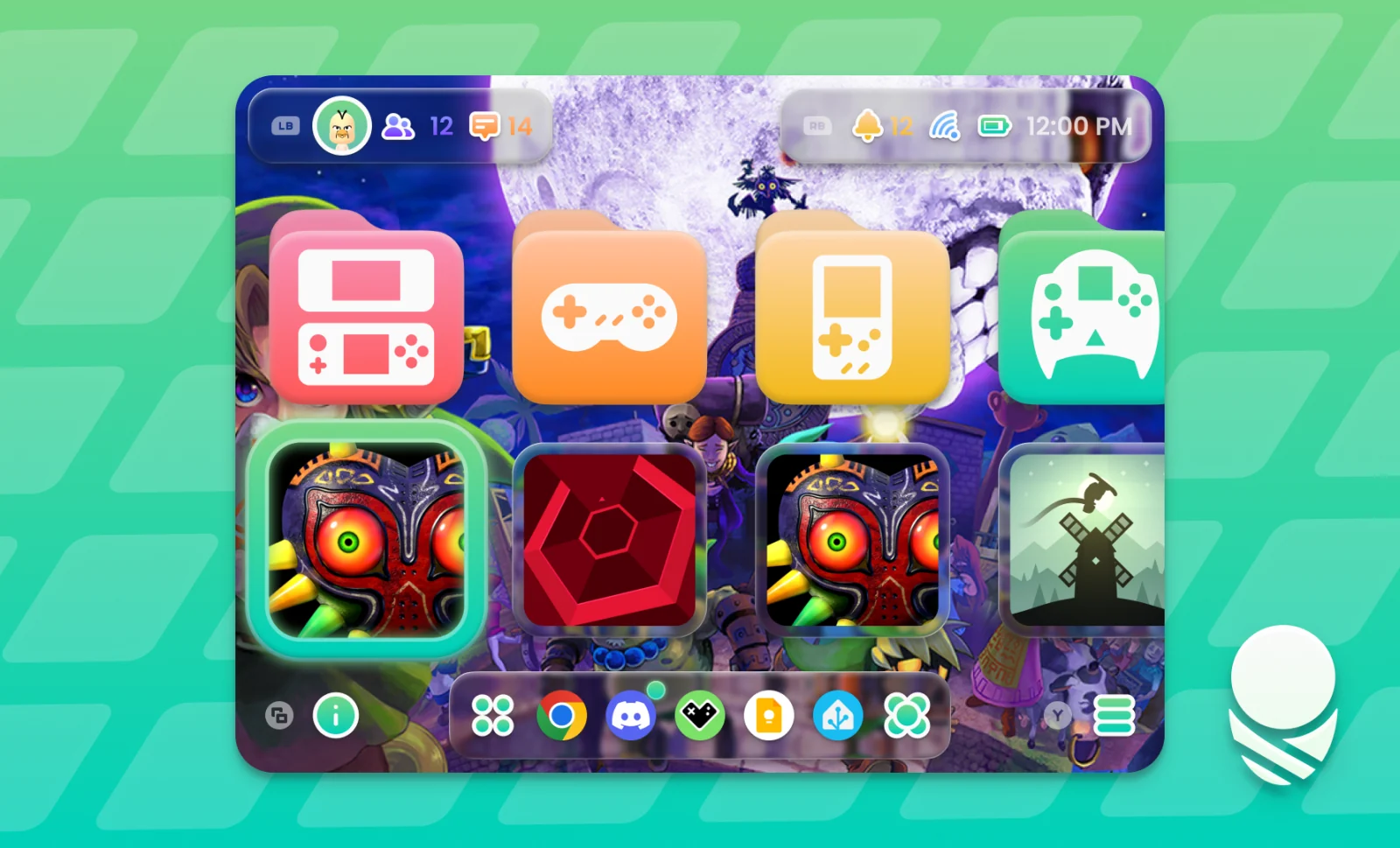
The home screen has gotten a big facelift to be more playful while keeping Cocoon’s identity. We’ve taken a lot of inspiration from the 3DS, while filling the UI with modern design sensibilities.
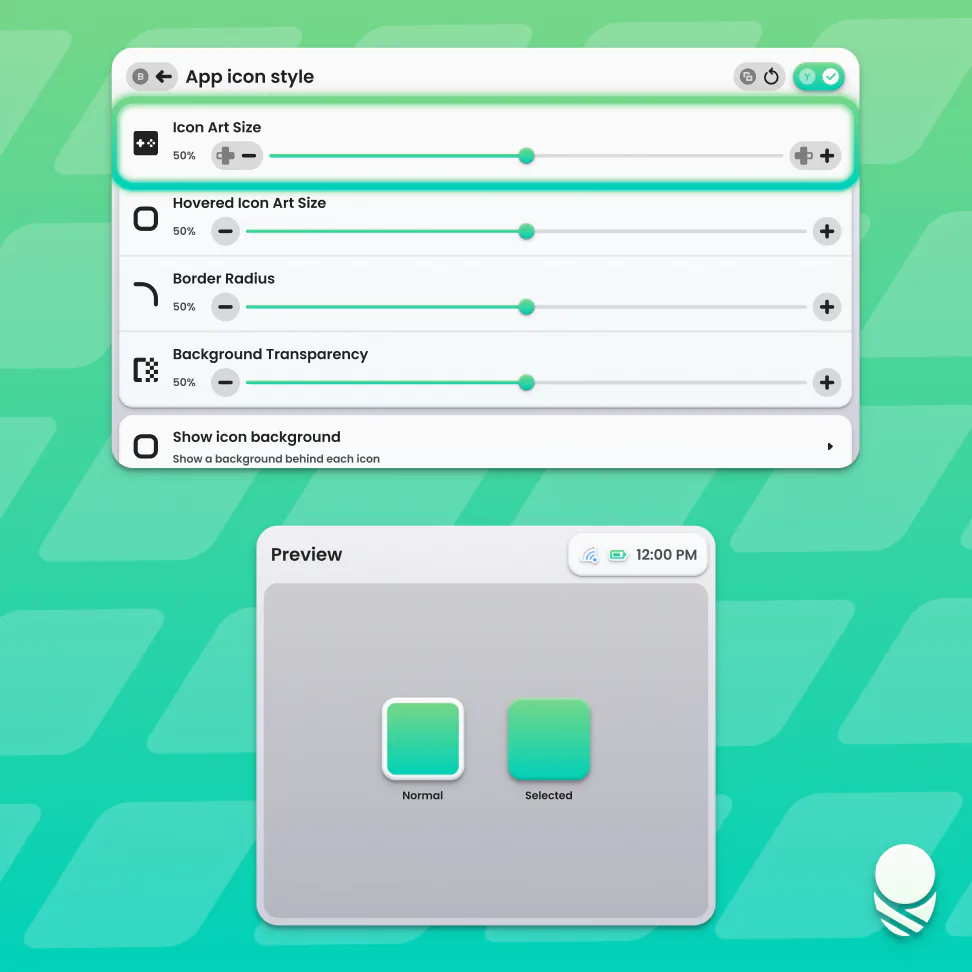
Out of the box, game icons are larger and the selected icon takes up the entire available space, creating a cleaner look. The ability to resize icons is still there, so if you prefer how things looked before, you can change the sizing back. Smart folders are also individually coloured based on the platform they represent instead of all being blue.

Pods now have shortcuts directly on the home screen, so you don’t have to dig through settings to get to Log, Picnic, Silk, or any other Pod. Cocoon Settings has a home screen shortcut too. If you like to keep things tidy, you can remove it and add it again later from the Start menu.
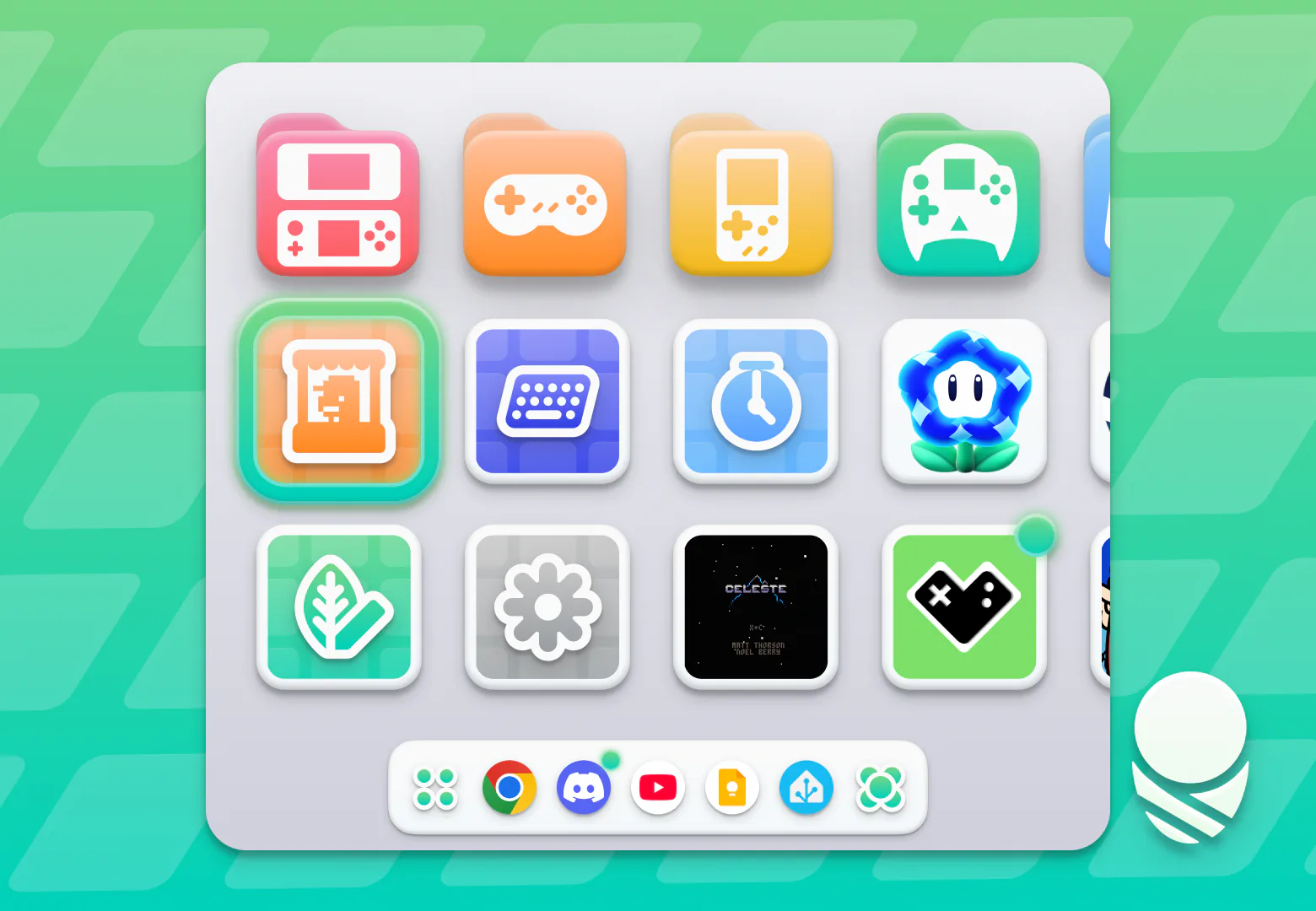
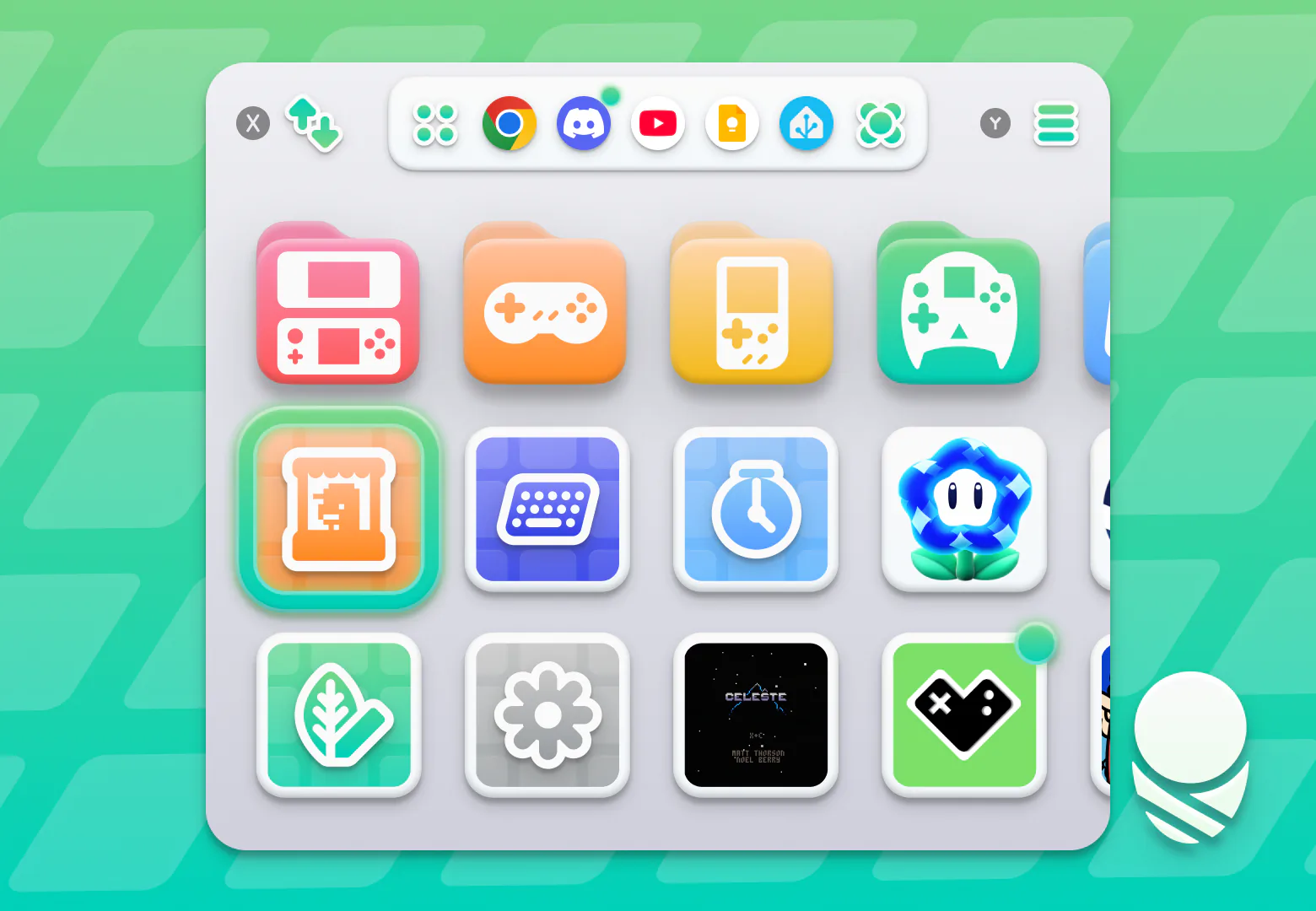
The dock now has a background by default that fits in with the new look. You can fit up to five icons, have it auto-hide, and by popular request, pin it to the top of the screen. The corner hints auto-hide by default too, giving the home screen more room. If you prefer to always see them, there is a toggle for that.
Make the grid yours
Cocoon’s grid has grown up quite a bit. Every zoom level can have its own saved layout, so zooming out can give you a compact library while your closer view keeps the carefully arranged setup you made. You can also turn on Page Mode for a fixed grid made from discrete, swipeable pages, with control over the number of rows and columns.
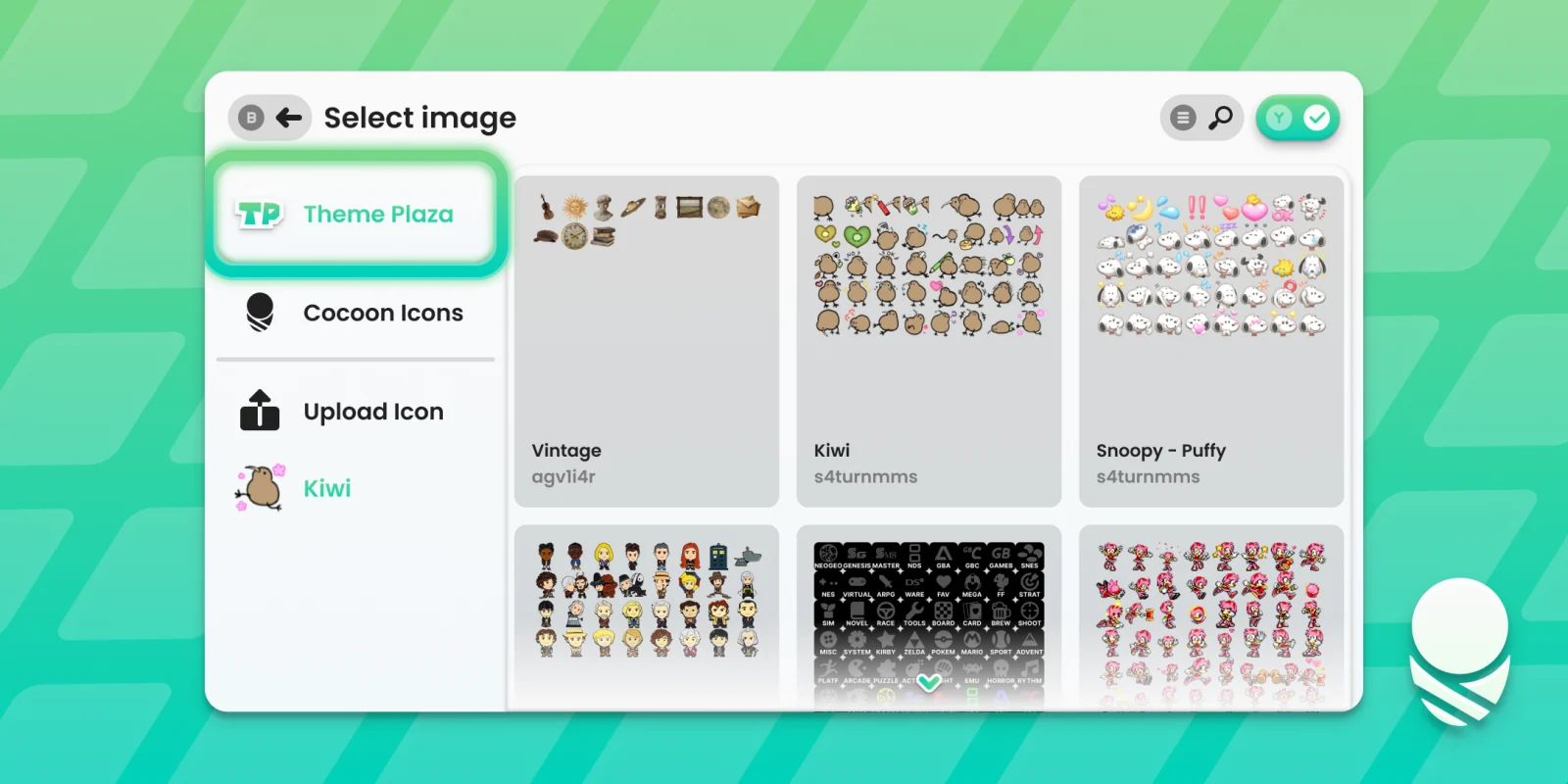
Widgets now live right alongside your games. Choose from Cocoon’s clock, Recently Played, Last Played, music player, image pin, Picnic, Log, and Random Game widgets, or place a native Android widget from any app right on your grid. ThemePlaza integration also lets you use badges as image widgets. Go to Start → New → Add Widget to get started.
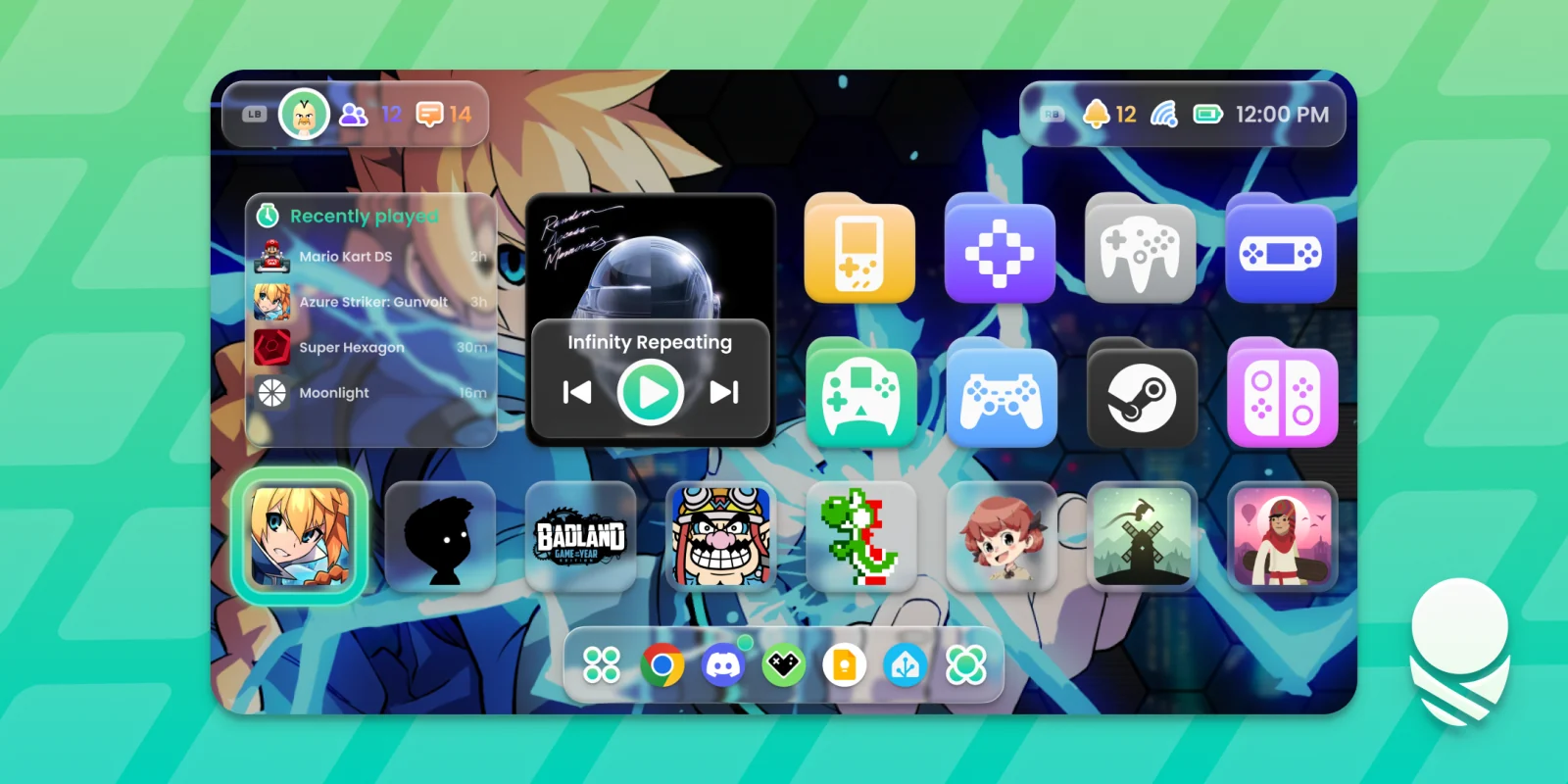
Games can be resized the same way as widgets. Go to Start → Edit Grid, select a game, then press Y to resize it. Small game in the corner? Huge favourite taking up the page? Go wild!!
A Much Better Info Screen
Next stop, the info screen! Cocoon now uses its own custom icons instead of relying on Material Symbols. We felt that the old icons didn’t fit Cocoon, so over 120 new icons have been created for this update. We know this is a big departure from the old look, which is why you can choose how they appear:
- Colorful (default): Icons are individually coloured
- Accented: Icons follow the accent colour you have set
- Flat: Icons are monochrome black or white with no raised styling
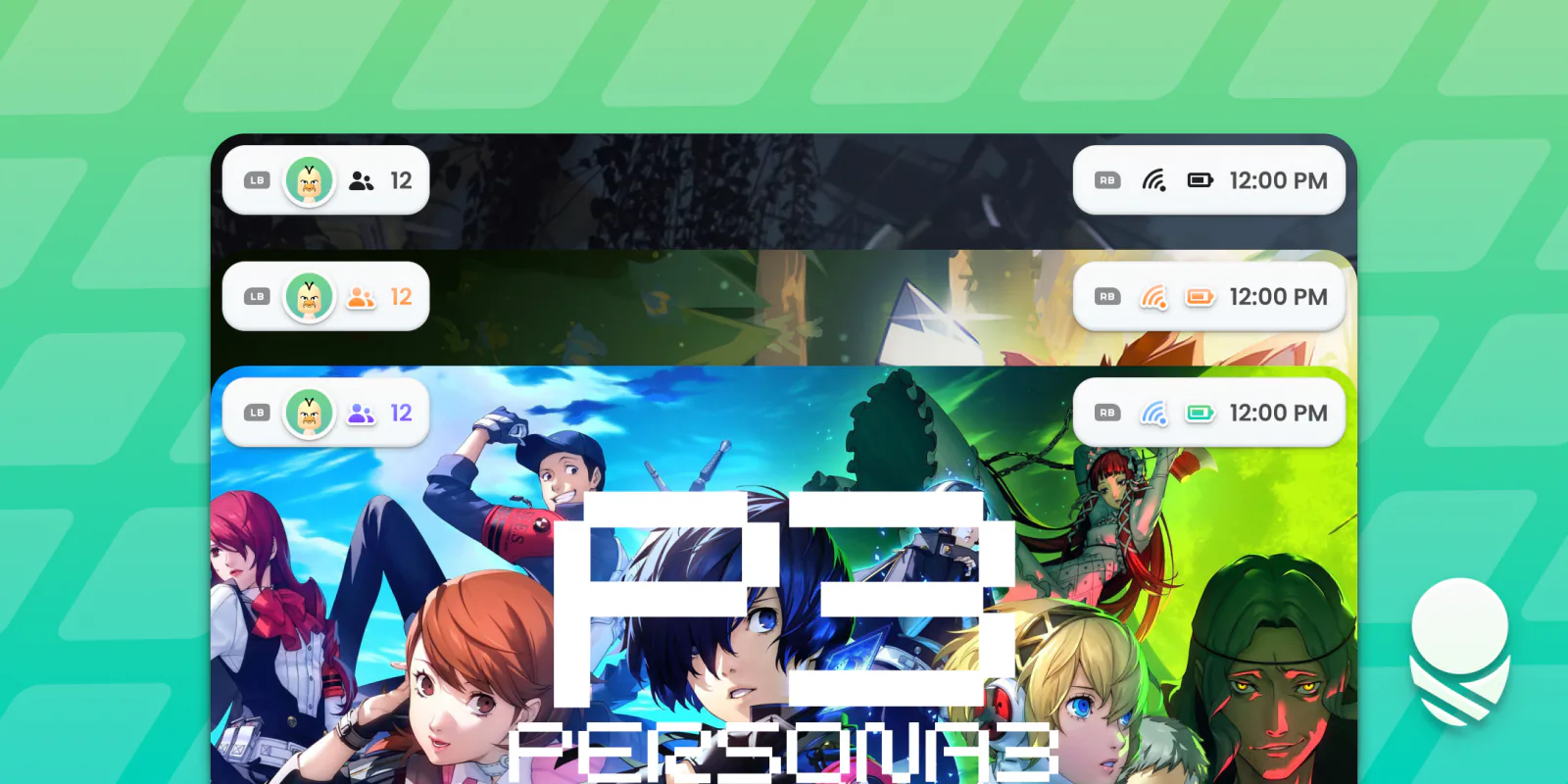

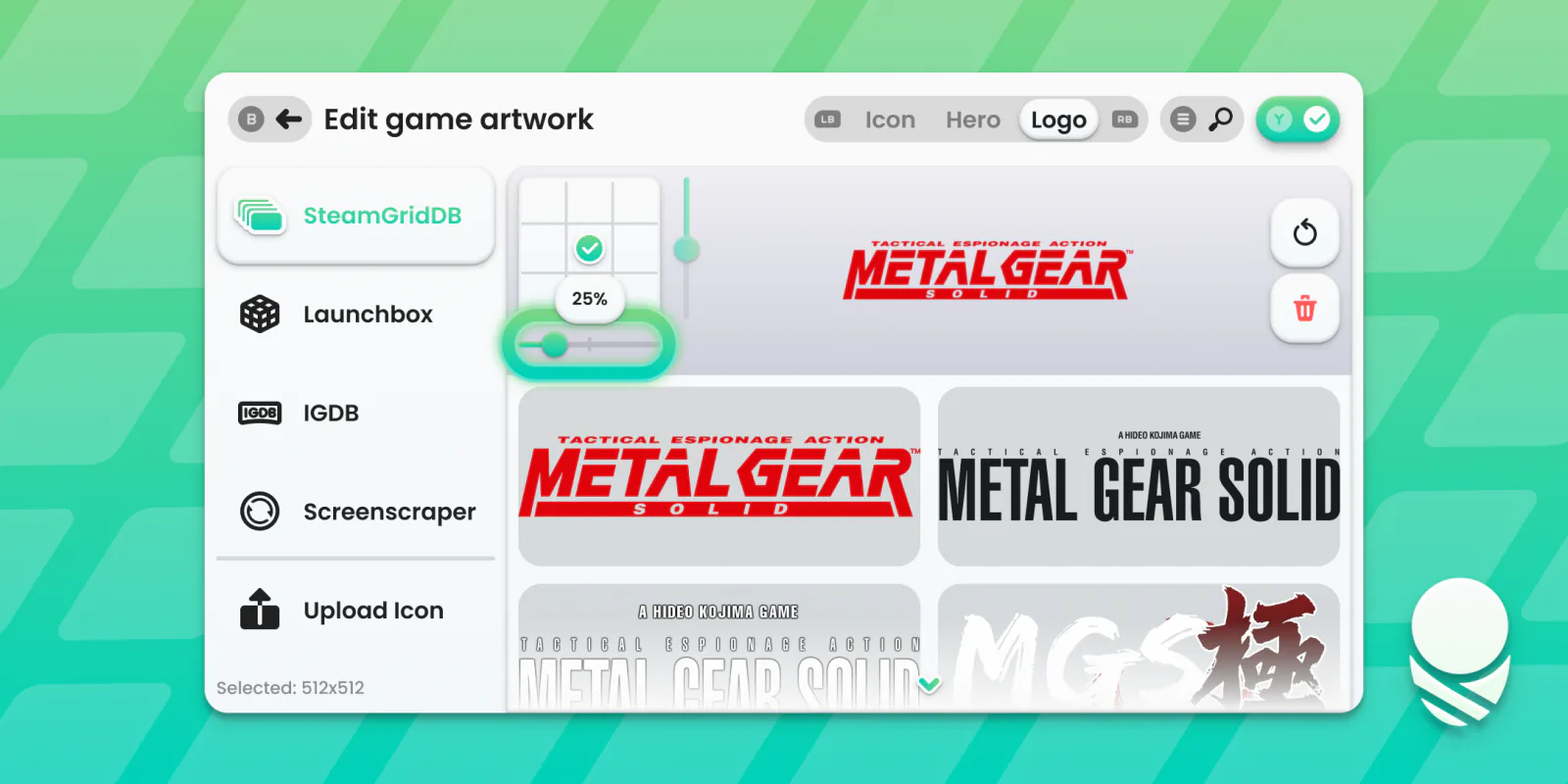
Every game has a different logo, and scraped art can place that logo in some pretty awkward spots. You can now reposition and resize logos per game, making sure everything looks right with its hero background.
The new asset picker gives you a quick way to change all the artwork for a selected game. SteamGridDB, LaunchBox Games Database, IGDB, and ScreenScraper are available right from the picker, and you don’t need to provide credentials for LaunchBox or IGDB. You can also upload your own files whenever you already have the perfect art.
Info, achievements, and activity
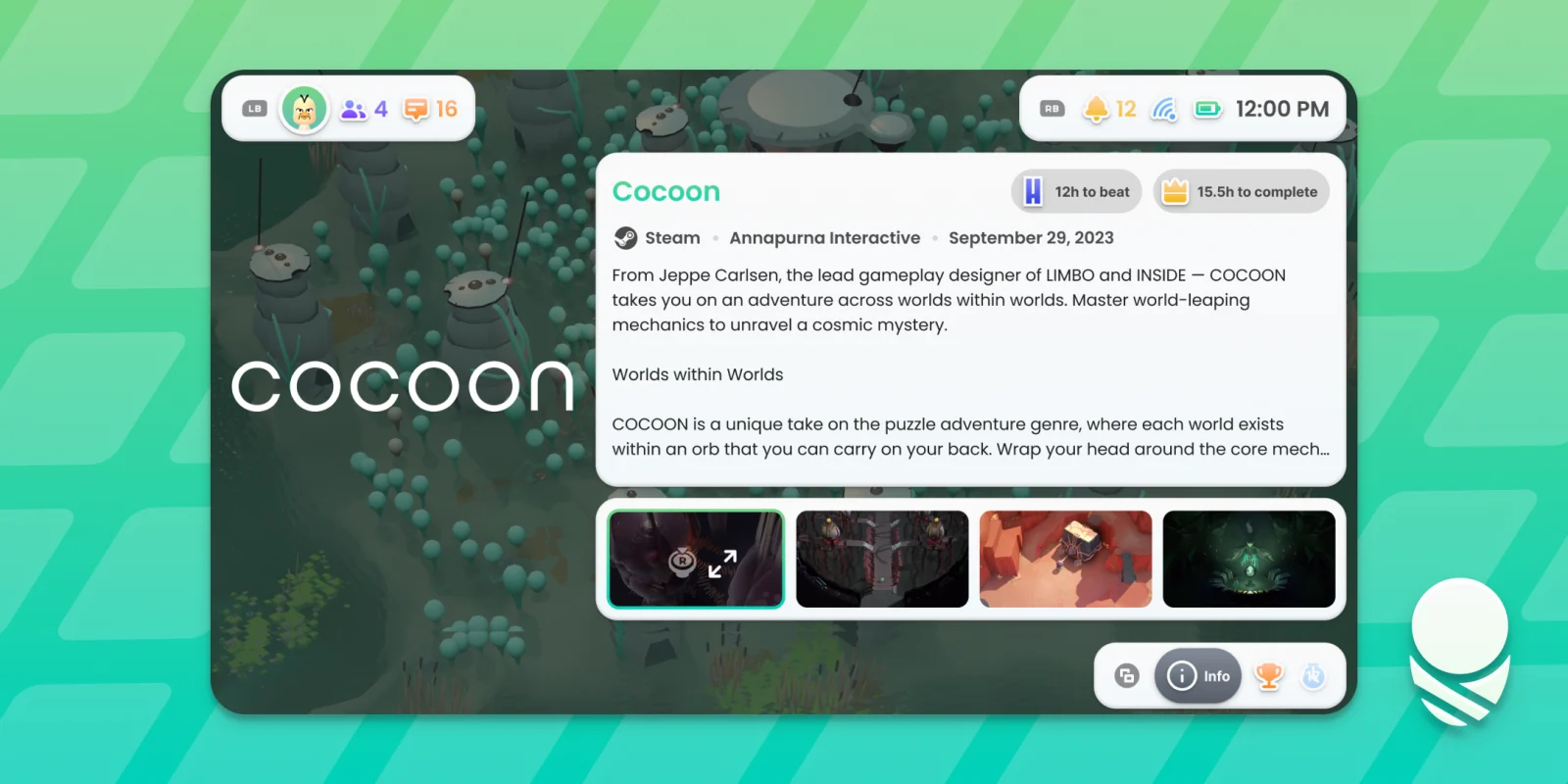
The info screen now has three tabs to cycle between: Game Info, Achievements, and Activity Log.
Game Info still gives you a quick description of the selected game, now joined by gameplay or trailer video, screenshots, and HowLongToBeat badges. Huge thank you to the HowLongToBeat team for allowing us to use their data!
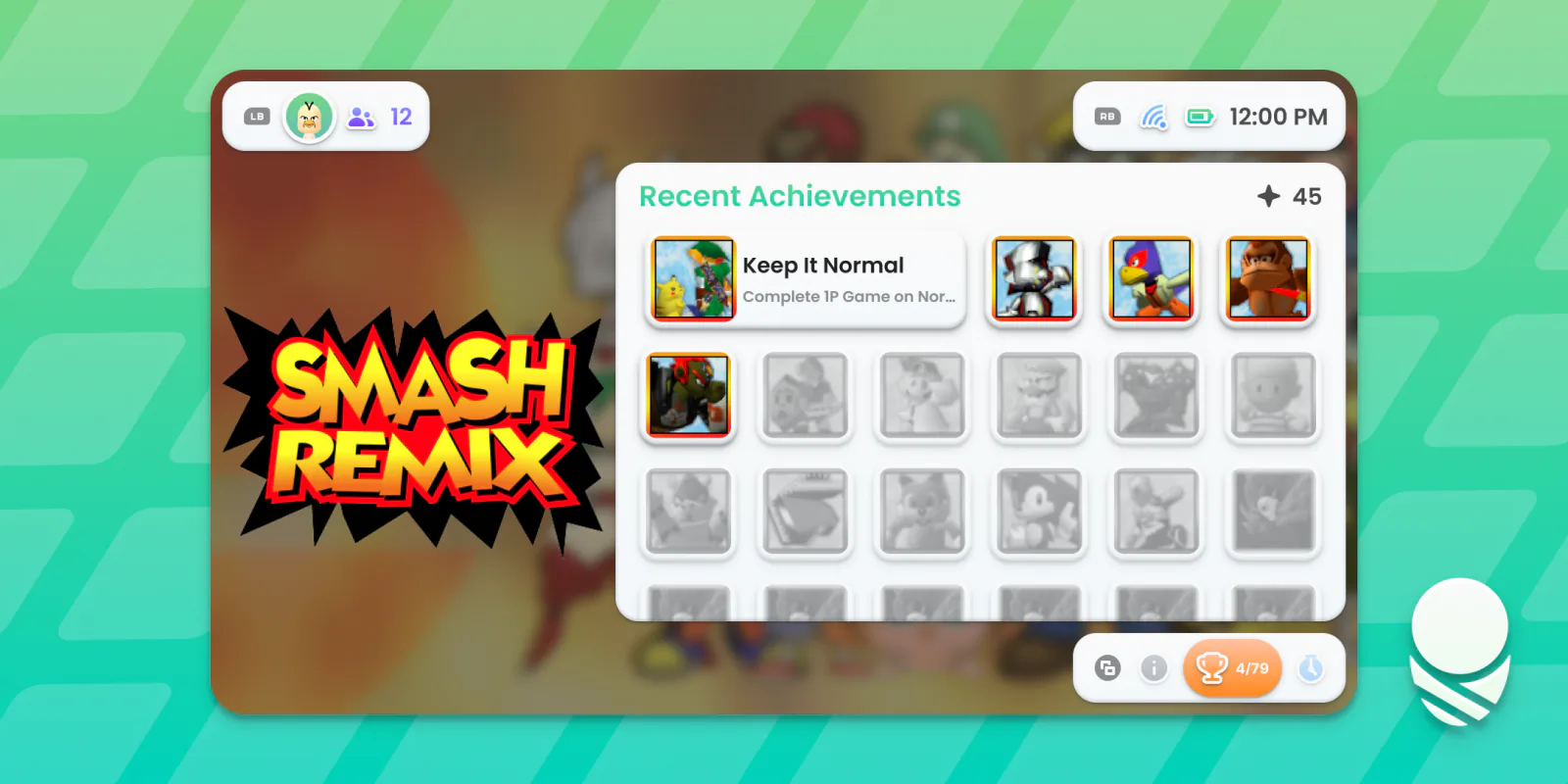
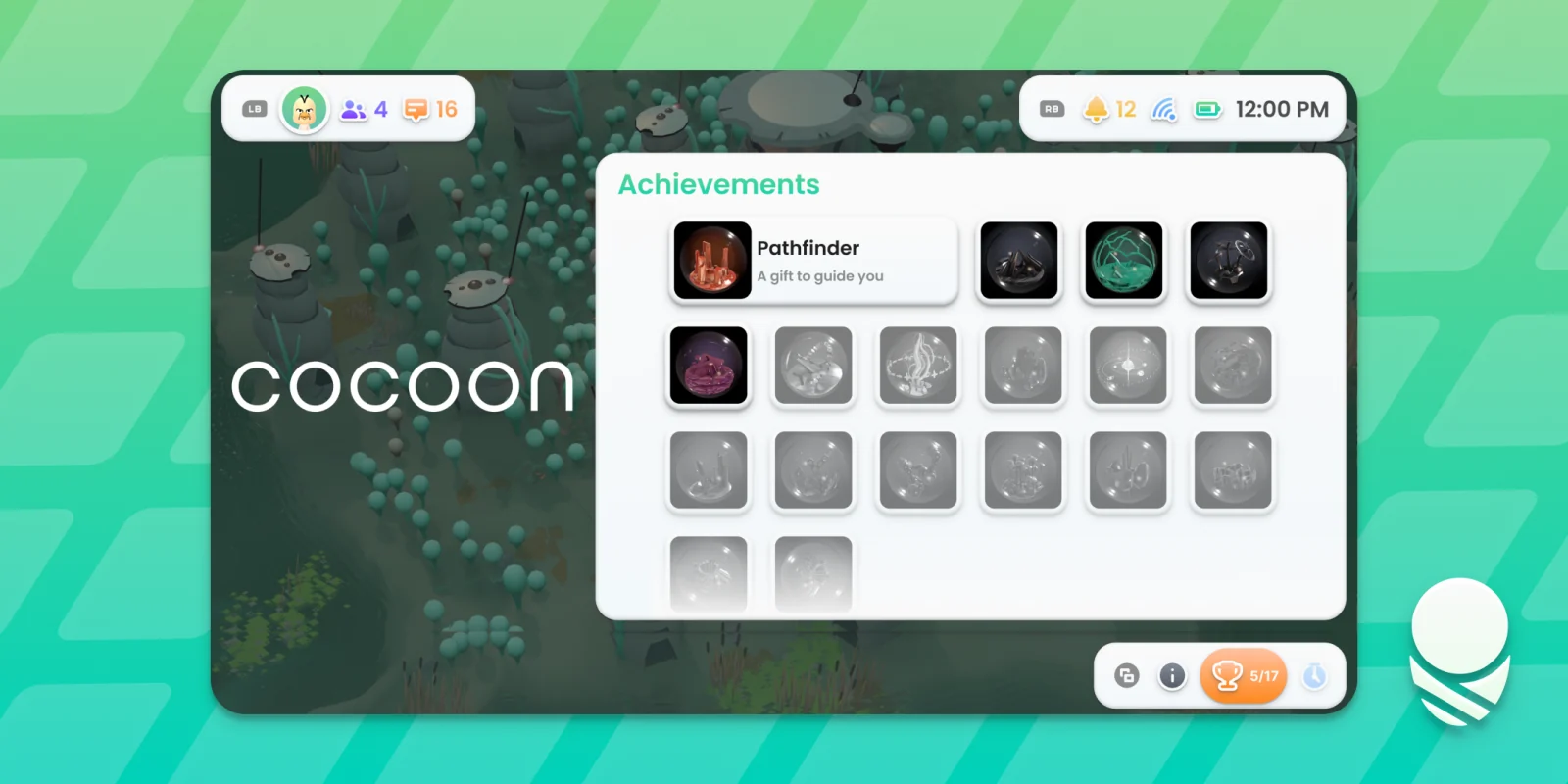
The Achievements tab shows your recently earned RetroAchievements and how close you are to 100% completion.
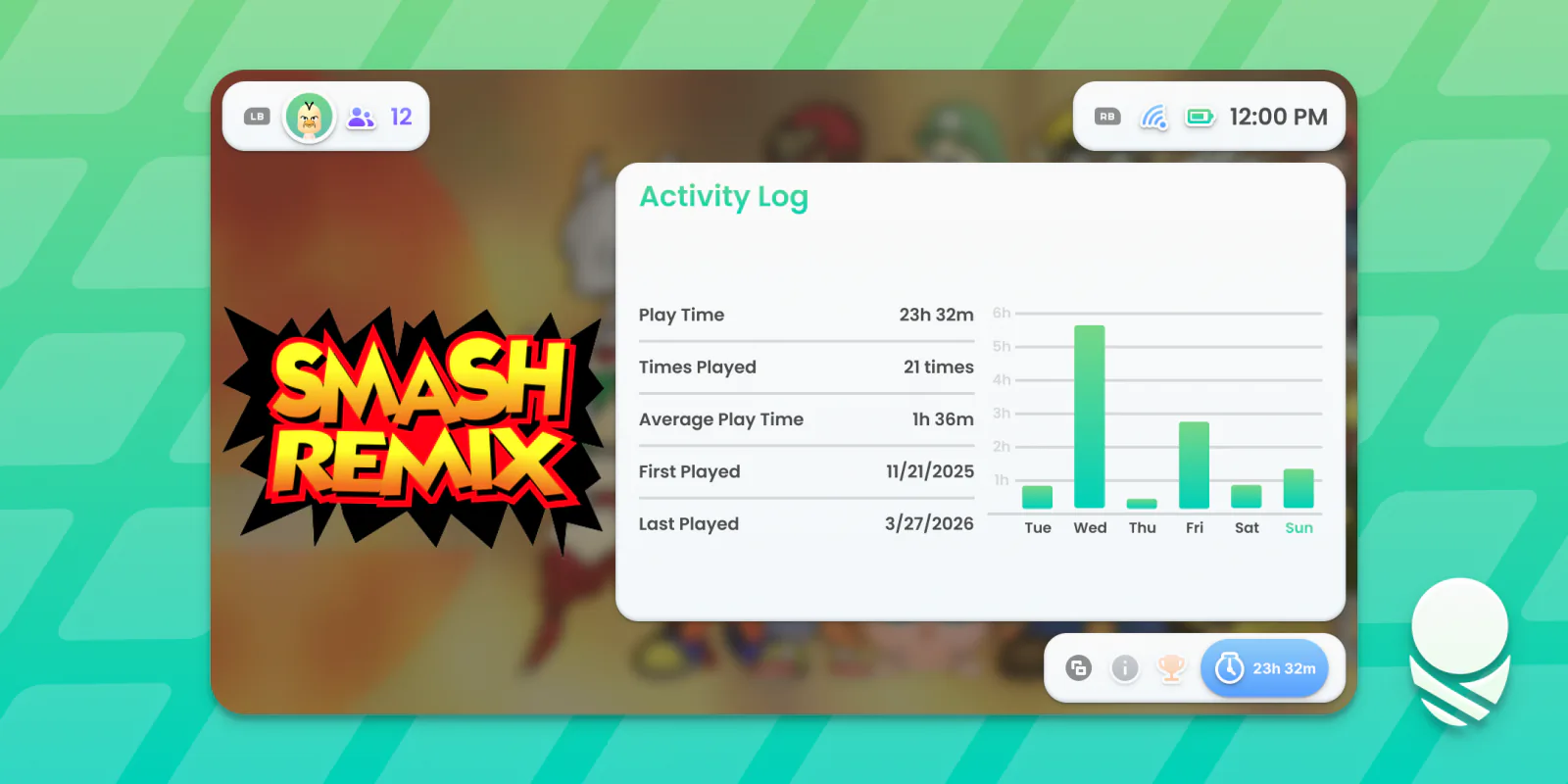
The Activity Log tab breaks your tracked playtime into useful stats and a graph of your playing habits throughout the week.
Steam achievements are here too! Once you’re signed into Steam, scanned Steam games and Steam shortcuts instantly show their achievements in both the info screen and achievements menu.
You can also add motion to game and folder logos. Head to Settings → Personalization → Hero Settings to choose the animation styles you want.
Status and Social Panels
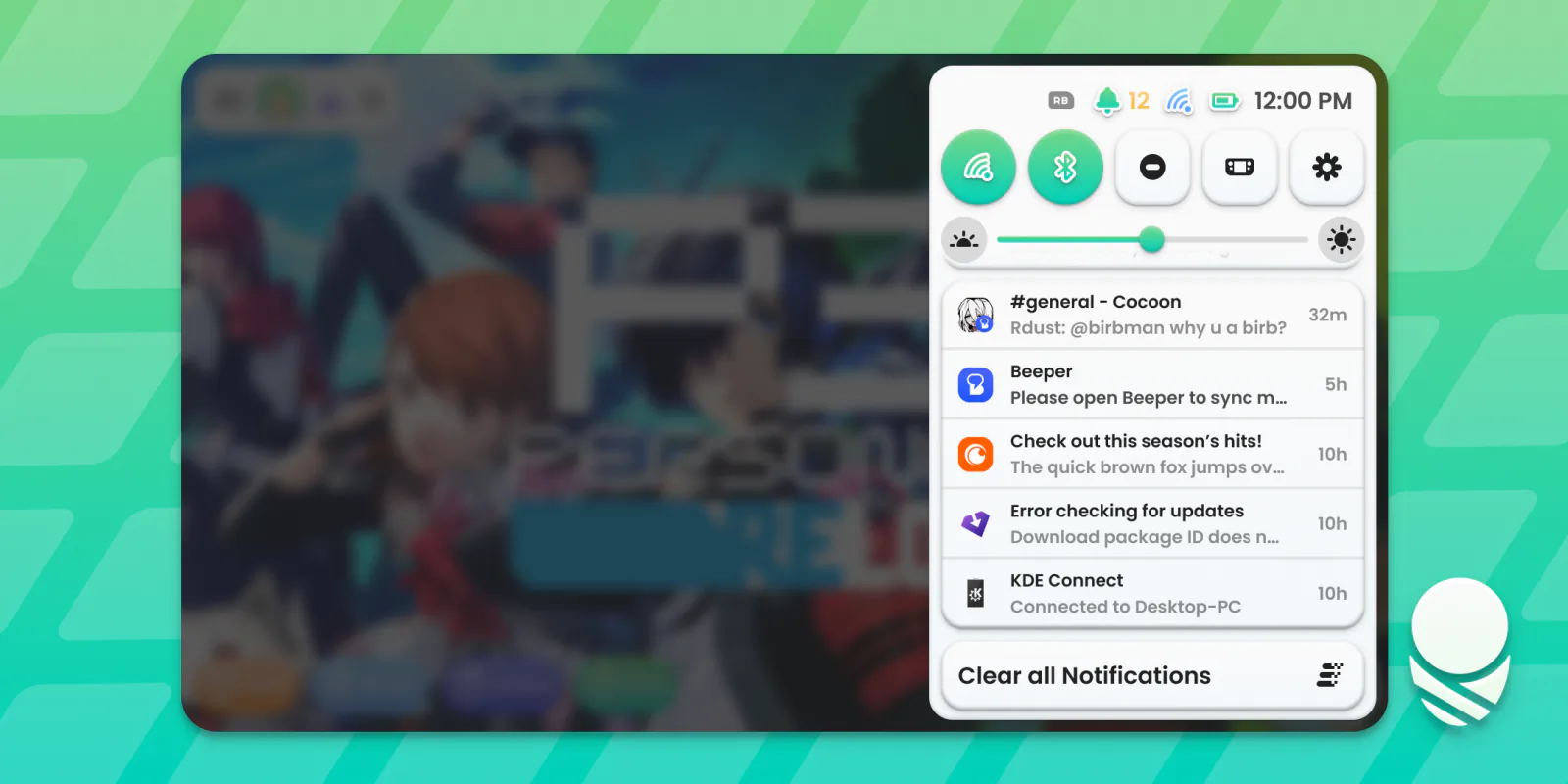
The status panel now actually has stuff in it! Quickly toggle Wi-Fi, Bluetooth, Do Not Disturb, and more without leaving Cocoon. Below the quick settings are notifications from both Cocoon and Android. See an update from Obtainium, the latest upload from Retro Game Corps, what’s happening in your community, and anything else waiting for you.
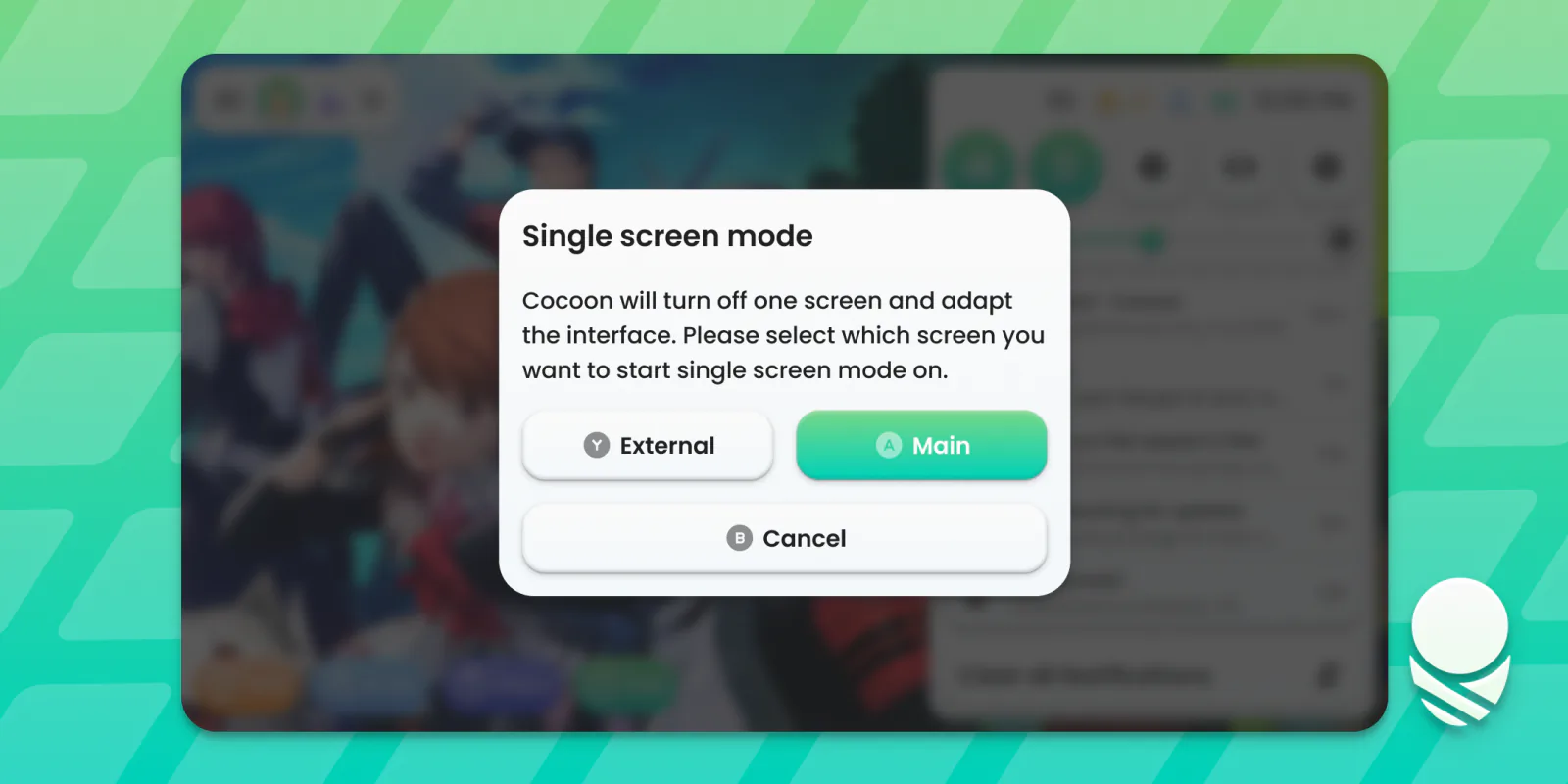
On the AYN Thor, the panel also has a Single Screen Mode toggle. Pick the screen you want to use and Cocoon adapts its interface while switching the other display off automatically.
The social panel has had a big overhaul as well. You can see Discord friends and their game activity, Steam friends with game activity and messages, plus Android conversations from Discord and any other supported messaging app. Android conversations can be replied to without leaving Cocoon.
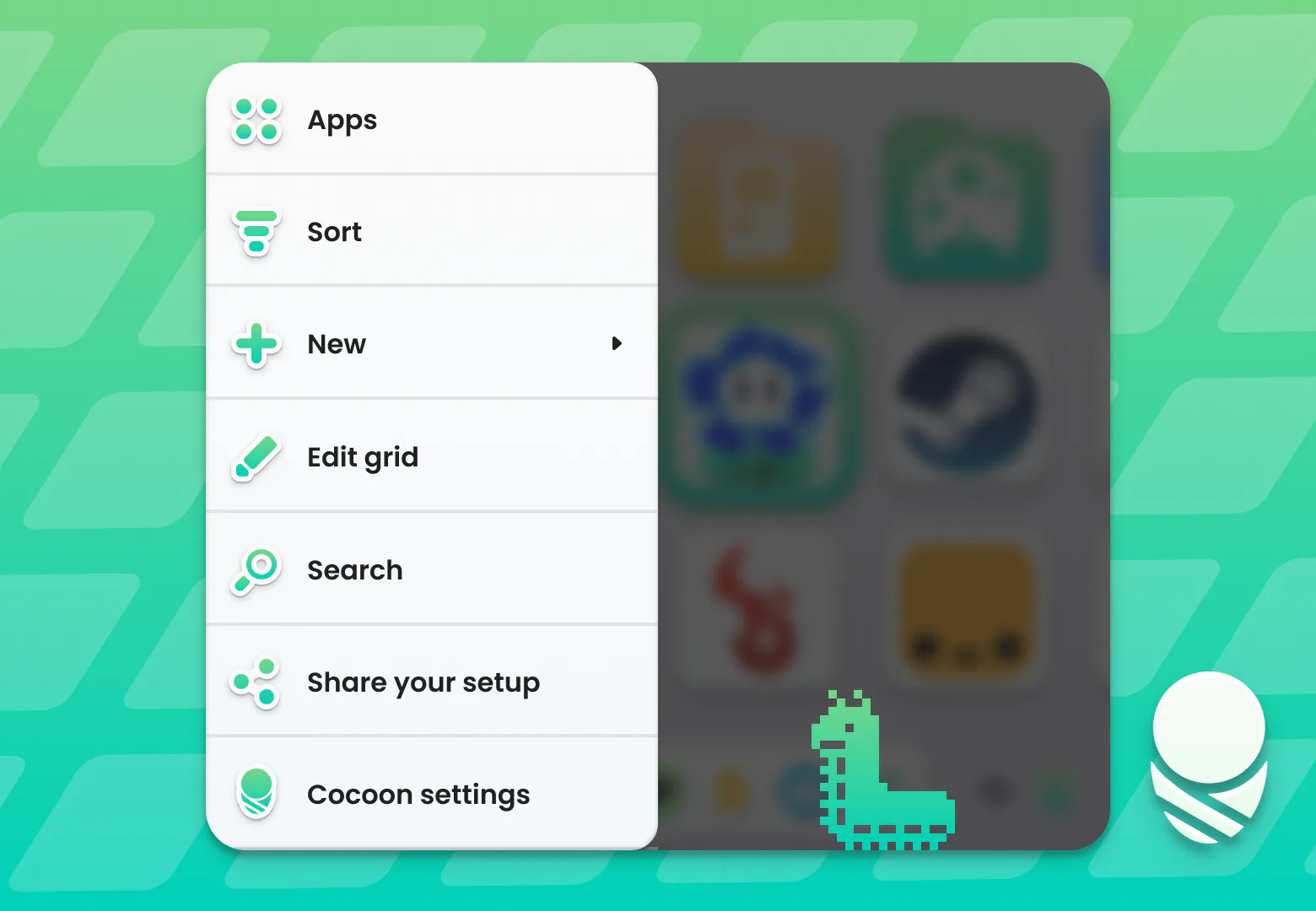
One bit of feedback we got about the Start menu was that it looked boring, and we agree! Grub is now part of the new design. Keep an eye out for Grub and friends throughout Cocoon! 🐛
Layouts for Every Device
Single-screen handheld owners, we didn’t forget about you! Cocoon now has single-row layouts in Standard, Carousel, and Cover Flow styles. Paired with the auto-hiding dock, these layouts make great use of a single display. They also work in dual-screen mode if you want the same look on an AYN Thor, Anbernic RG DS, or AYANEO Pocket DS.

The RG Rotate now gets a landscape view while closed, showing a simple wallpaper screen with the clock or media player when something is playing. Cocoon’s grids, navigation, and media handling have also been heavily optimised for the Rotate.
External display docking is working too. Cocoon moves cleanly between single and dual-screen layouts, and a docked setup can use up to five rows to make the most of the larger display. Settings → System & Advance → External Display Docking lets you choose whether Cocoon docks automatically, always docks as a single-screen layout, or keeps the display as a second screen.
Say Hello to Pods
As part of this big overhaul, we’re introducing new Pods! These are mini apps built to feel at home inside Cocoon, and each one works on both single and dual-screen devices.
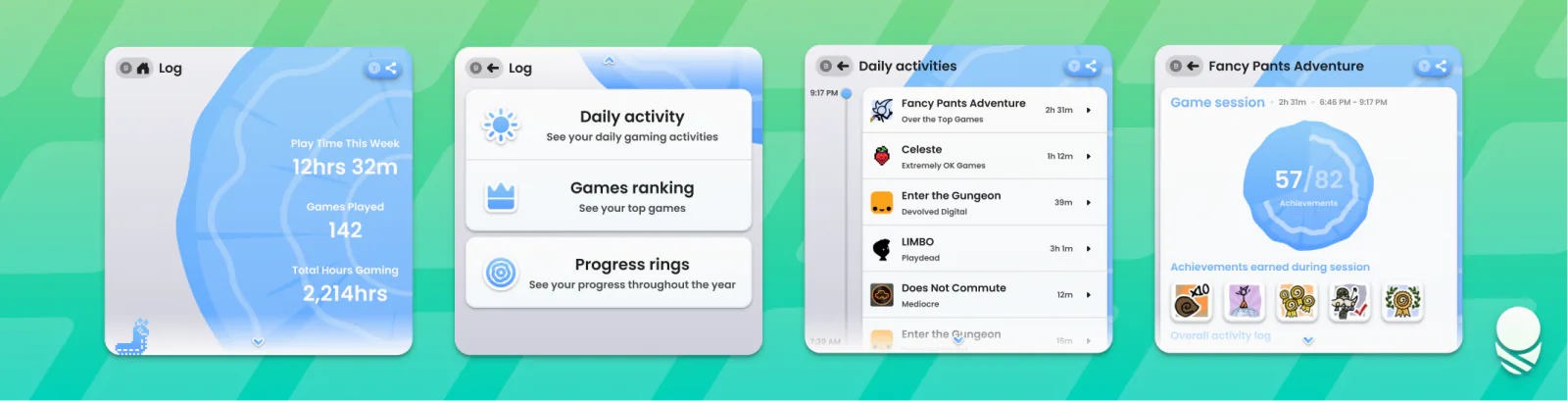
Log
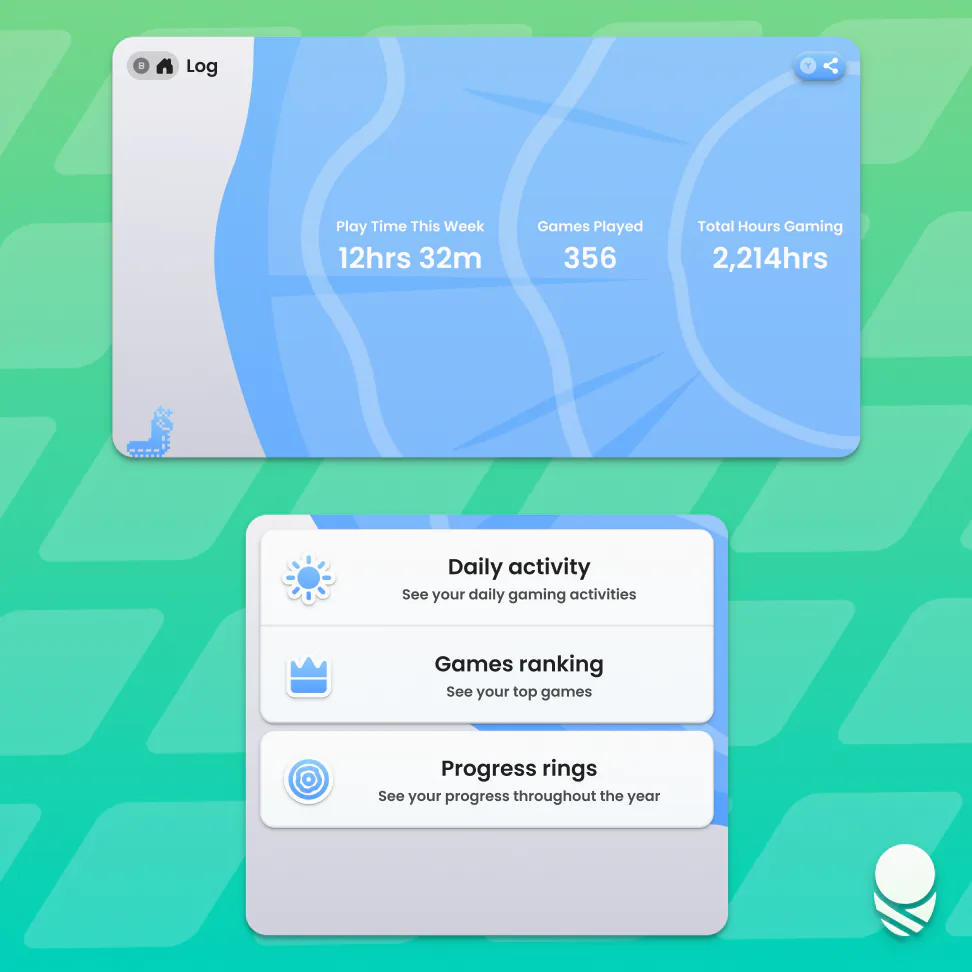
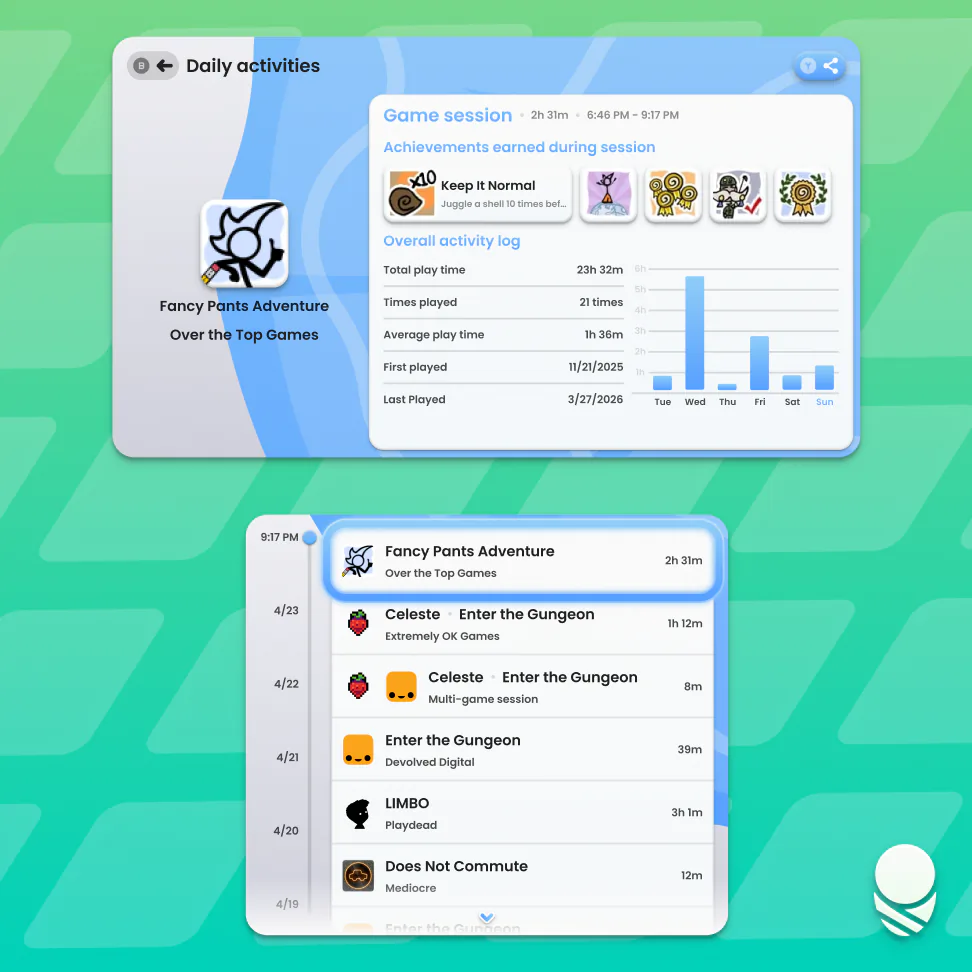
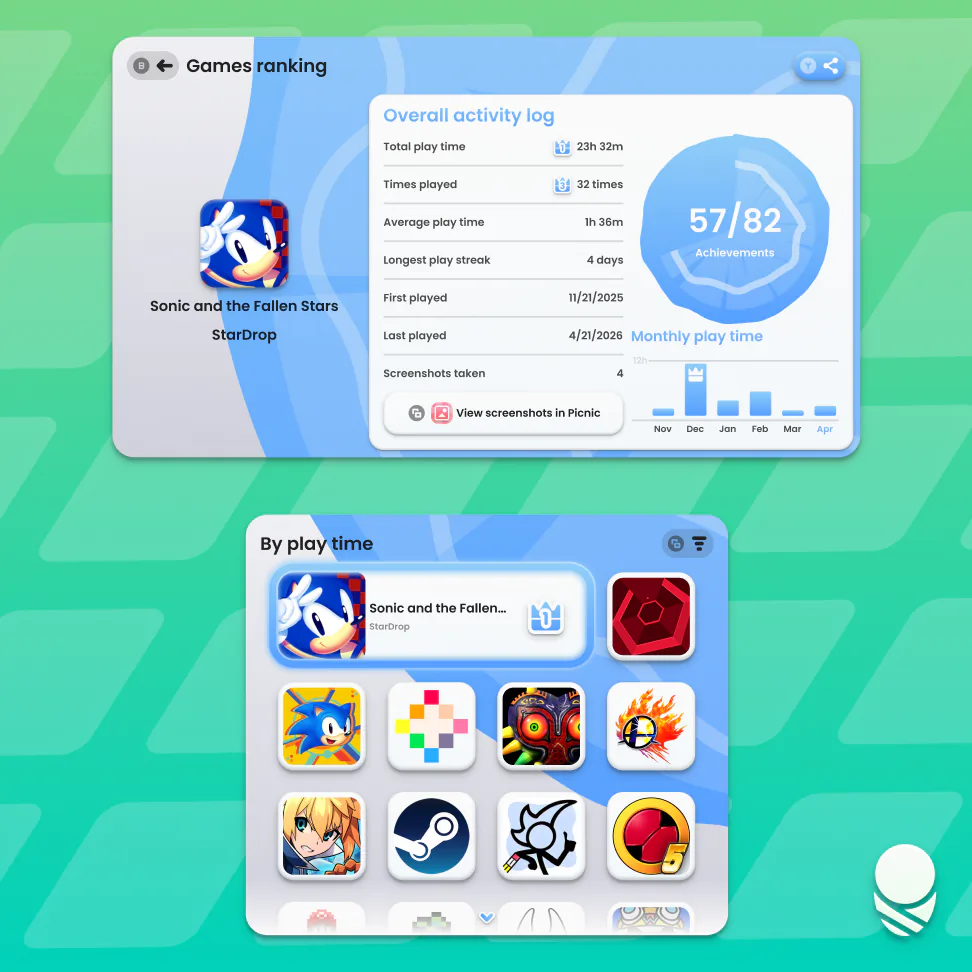
Log keeps track of your playtime and shows statistics for all the games you’ve played.
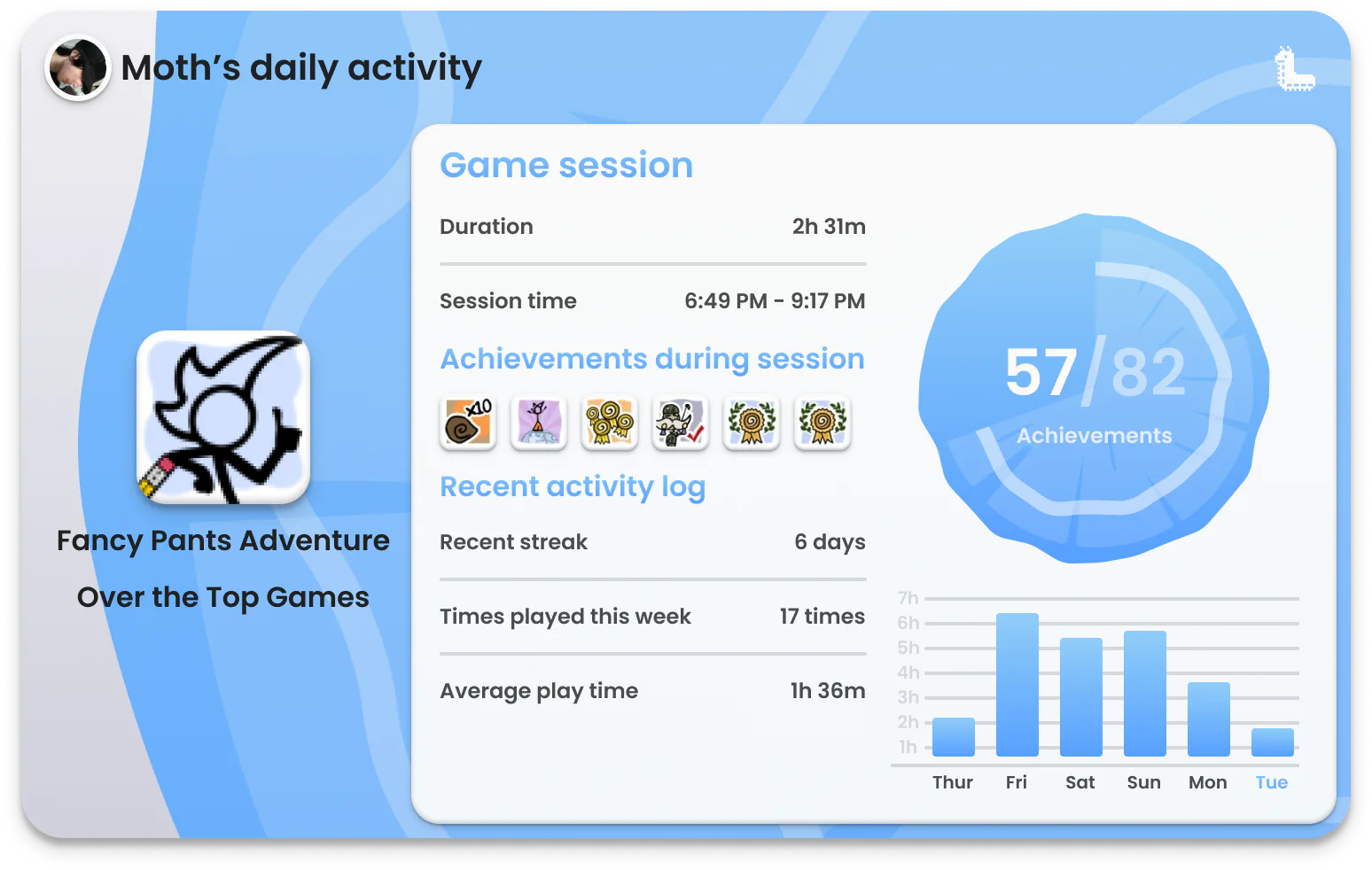
Daily Activity lets you dig into each game, including total playtime, how often you’ve played, recent achievements, and plenty of other stats. Games Ranking gives you a bigger picture of your library, showing what you’ve played the most, which games you completed first, what holds your attention the longest, and more.
You can share your stats to friends, social media, or chat with a generated graphic ready to go alongside your post.
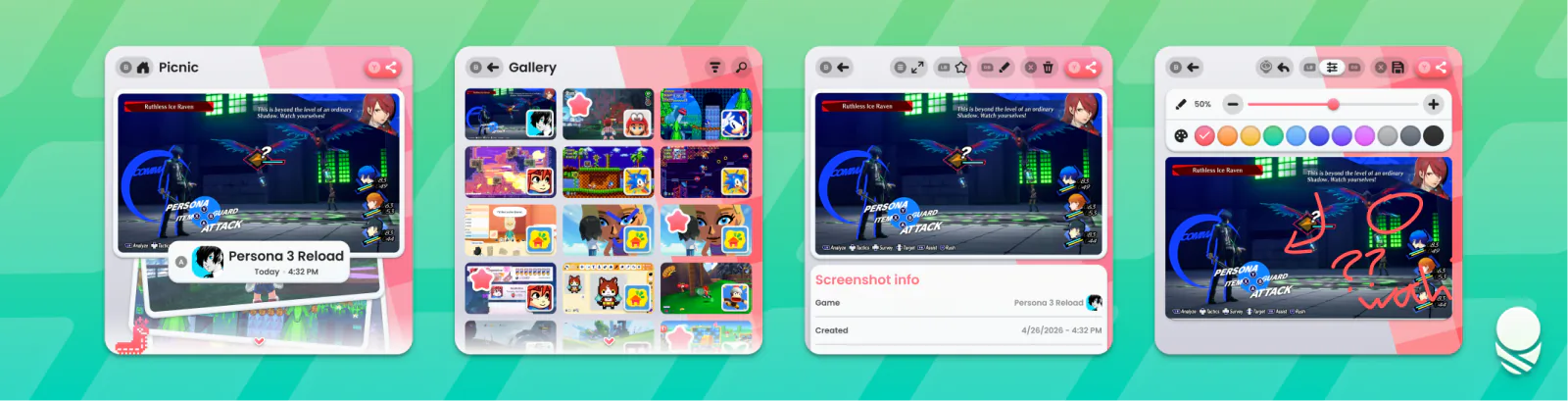
Picnic
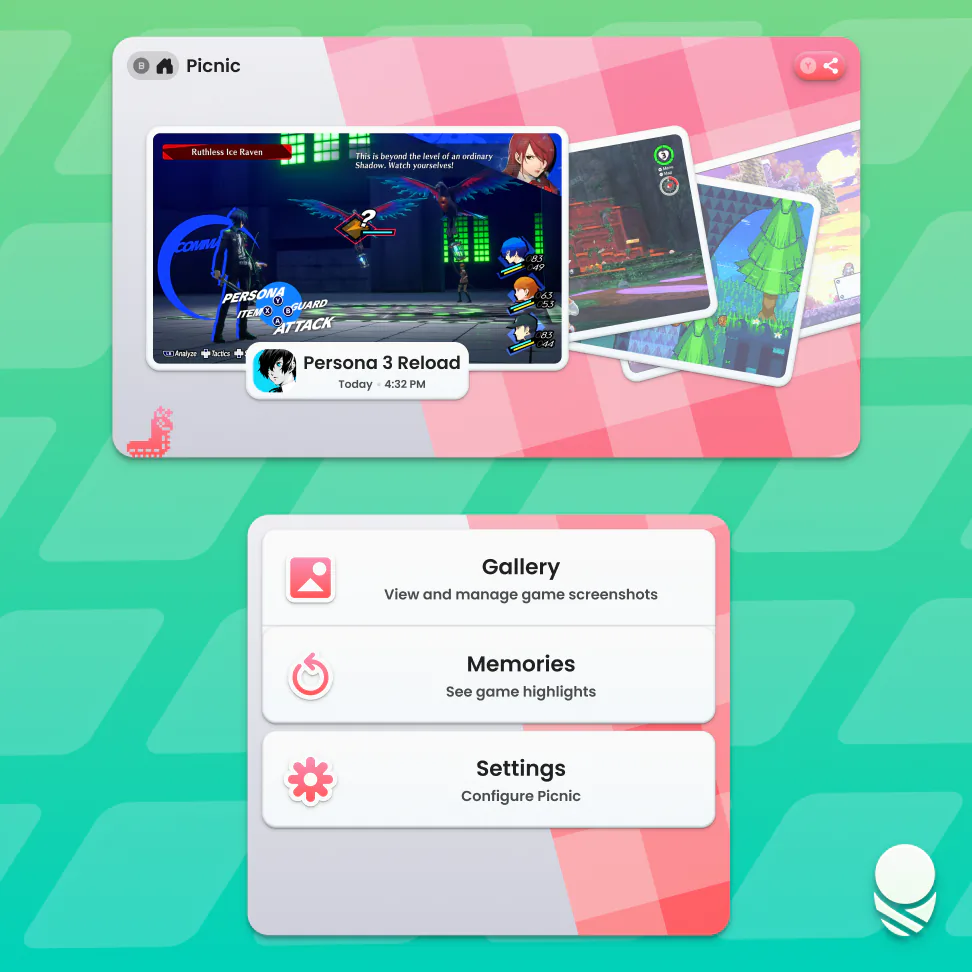
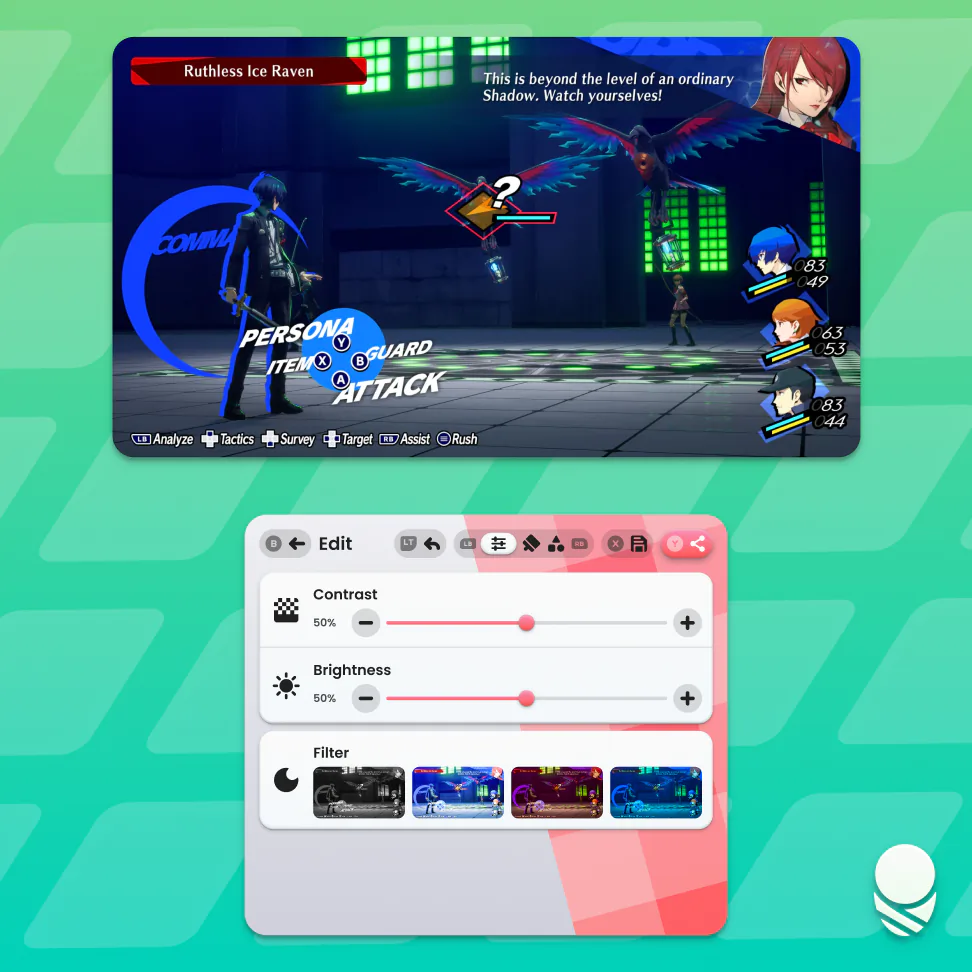
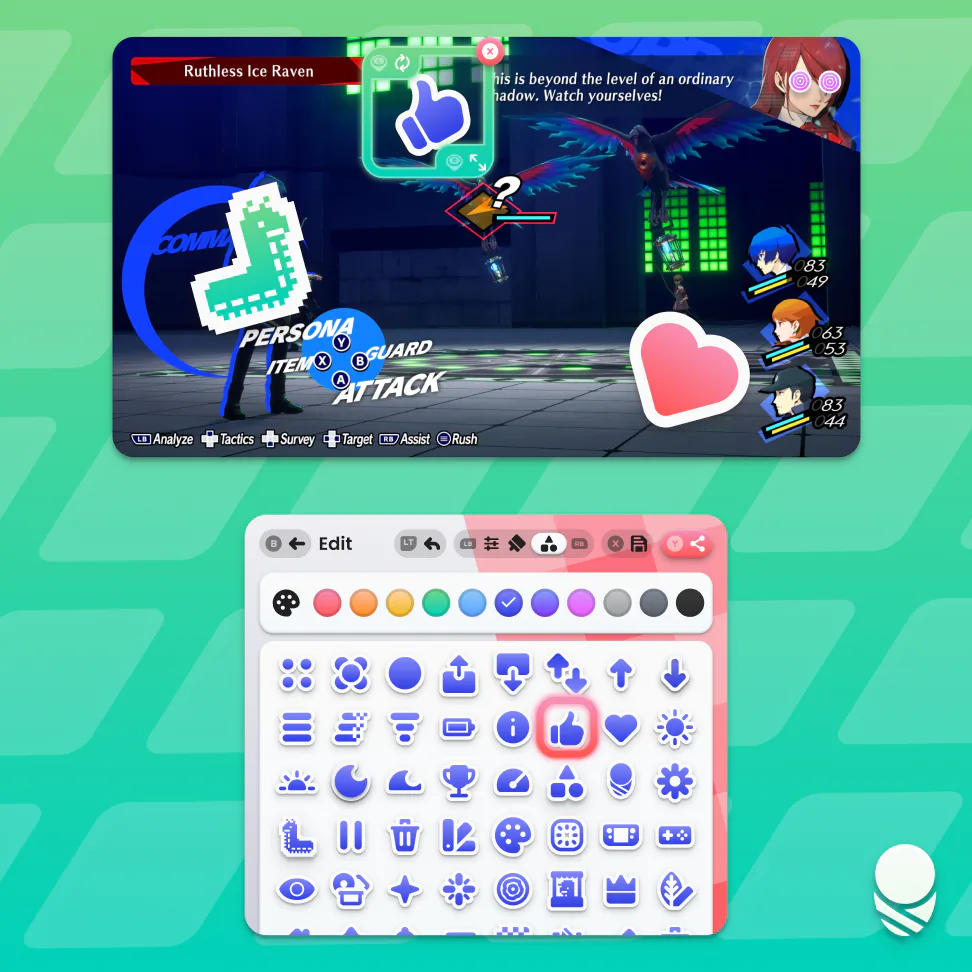
Picnic is a screenshot manager that keeps captures organised by the game they came from. See every highlight from a specific game without digging through your screenshots folder.
Edit mode lets you make basic colour tweaks, doodle on your capture, and decorate it with stickers. Once you’ve got the perfect shot, you can share it directly to social media or chat from Picnic.
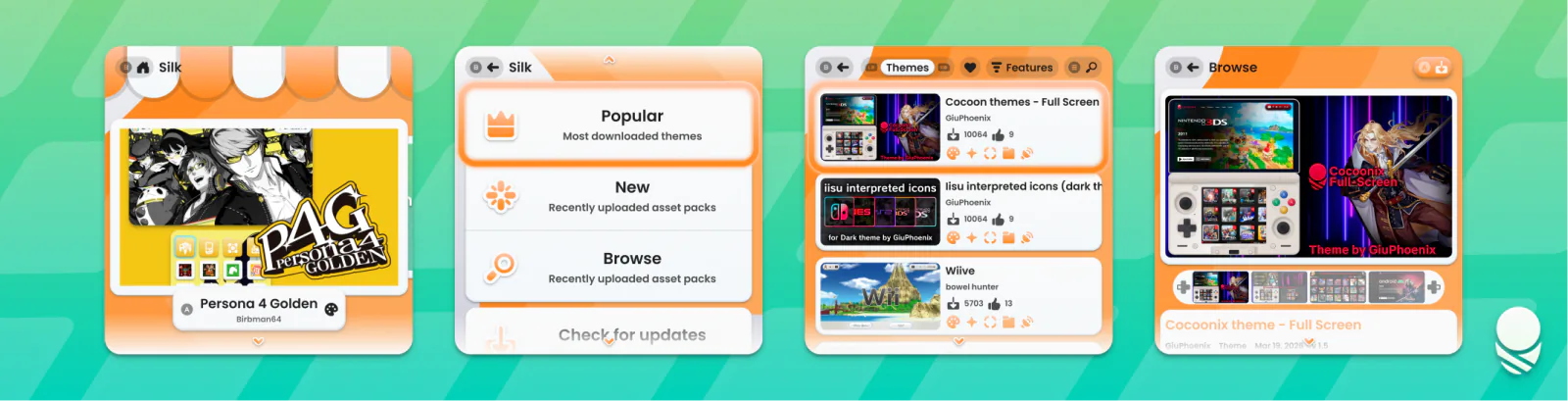
Silk
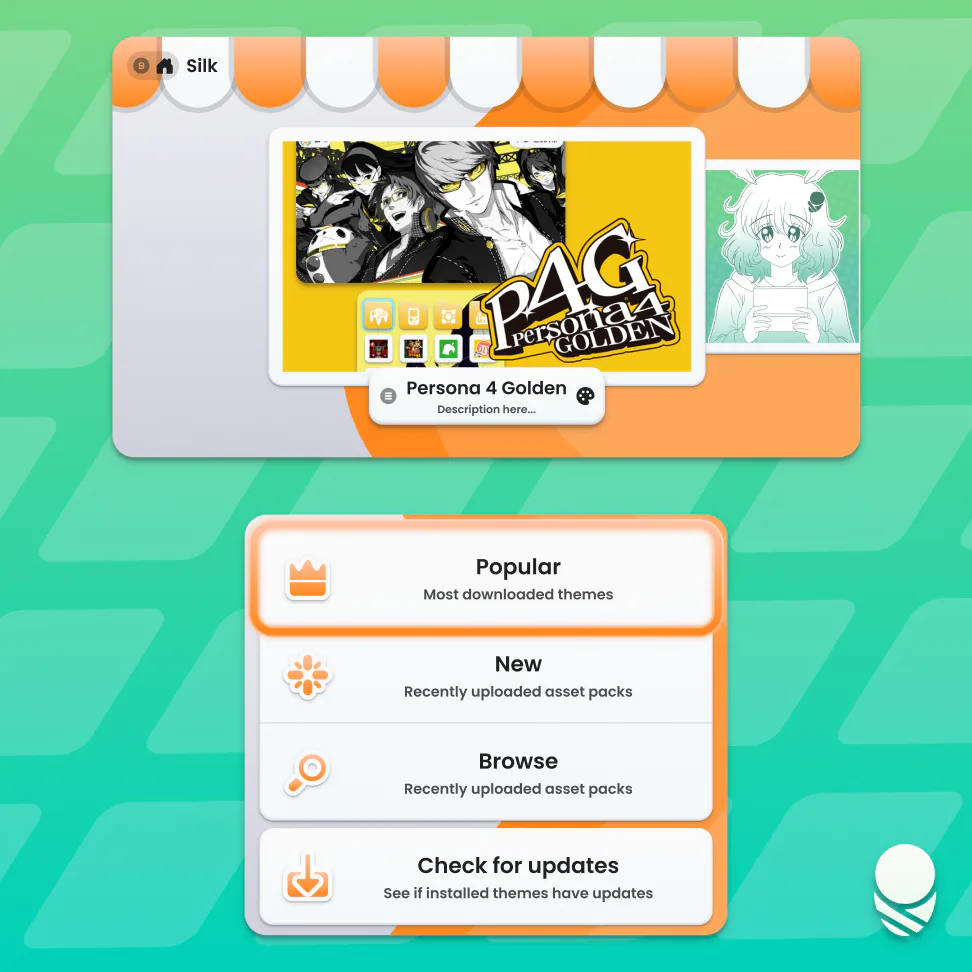
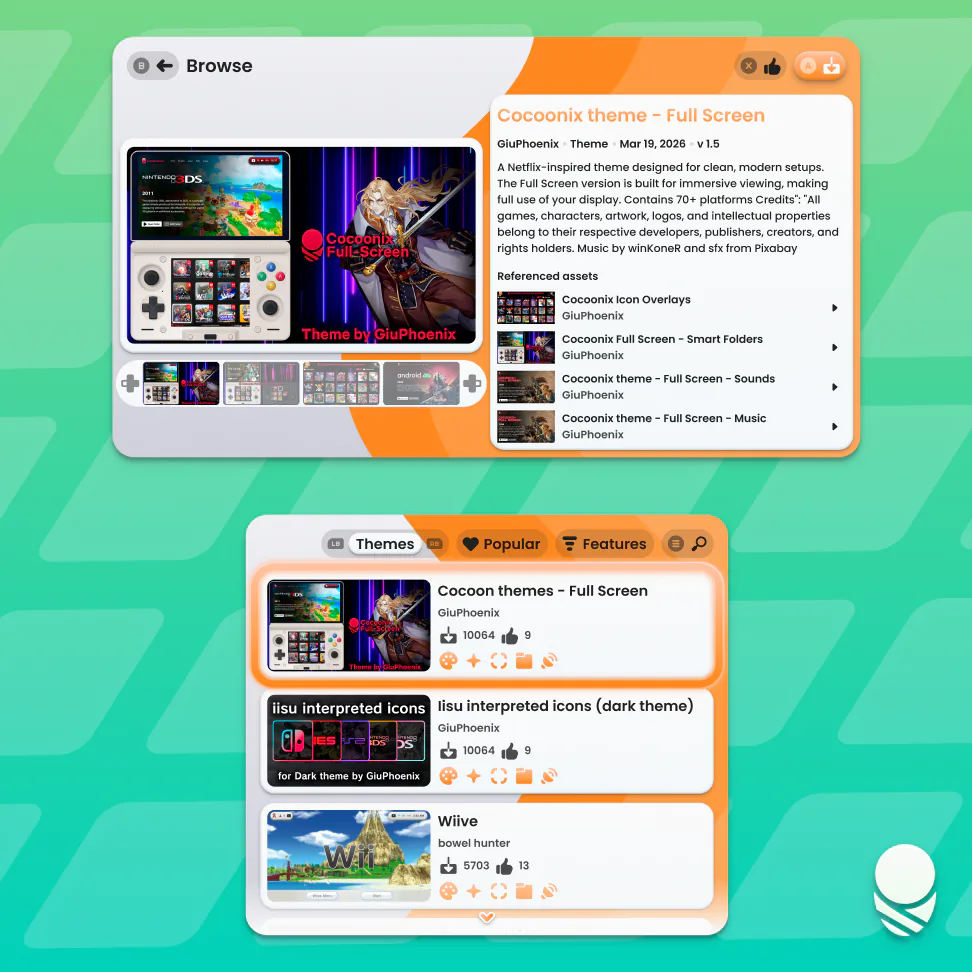
The Silk theme store has a dual-screen face-lift. Browse themes on the bottom screen while the top screen gives you a proper preview. It is the same community theme and asset store, now much easier to explore.
Settings
Settings gets the dual-screen treatment as well. Scrolling back and forth between a setting and its preview was never ideal, so the other display now shows your changes whenever one is available.
All of these Pods have layouts made for single-screen devices too, including handhelds with squarer displays.
We’re just getting started with Pods, and we can’t wait to share more!
Themes, Settings, and Glass
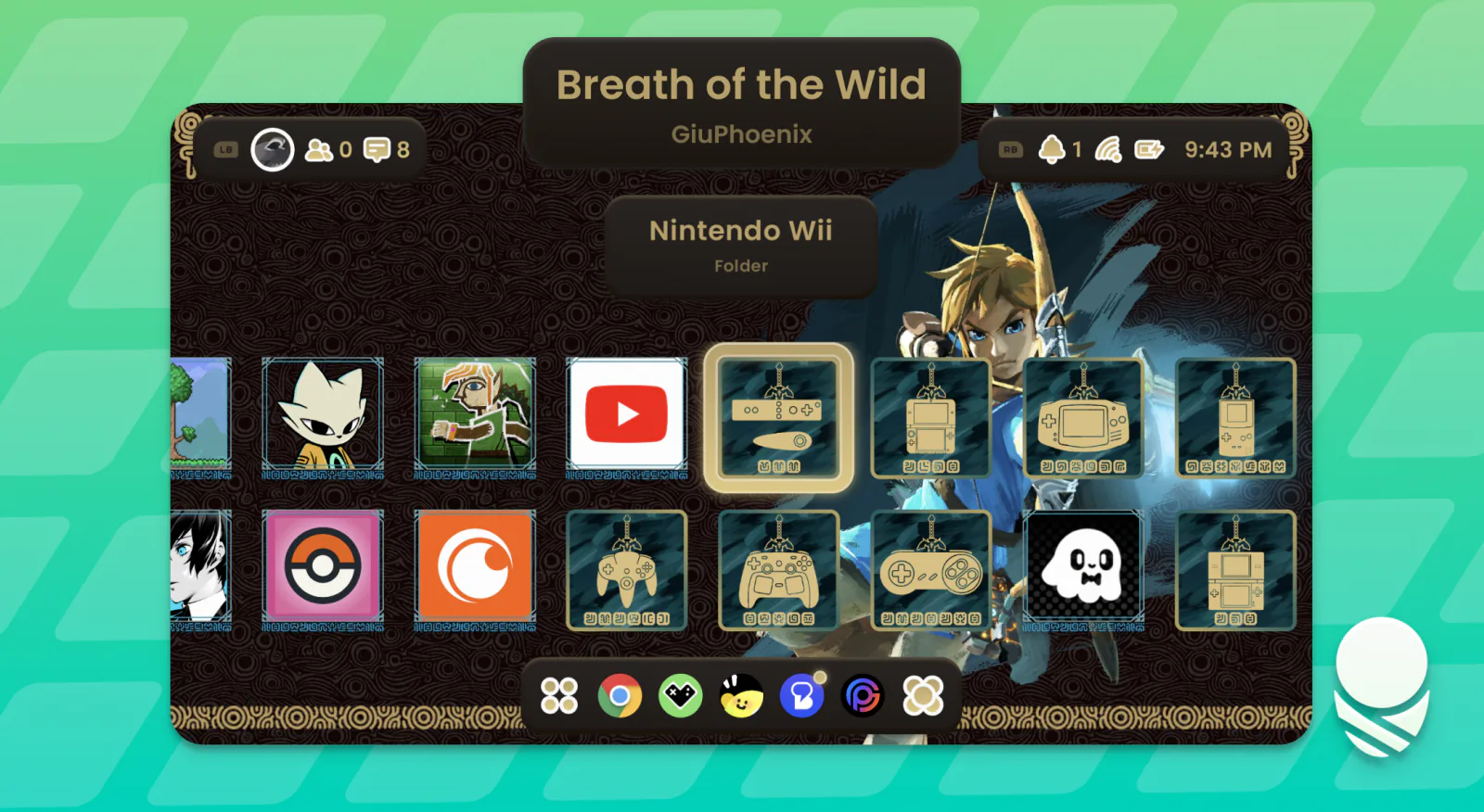
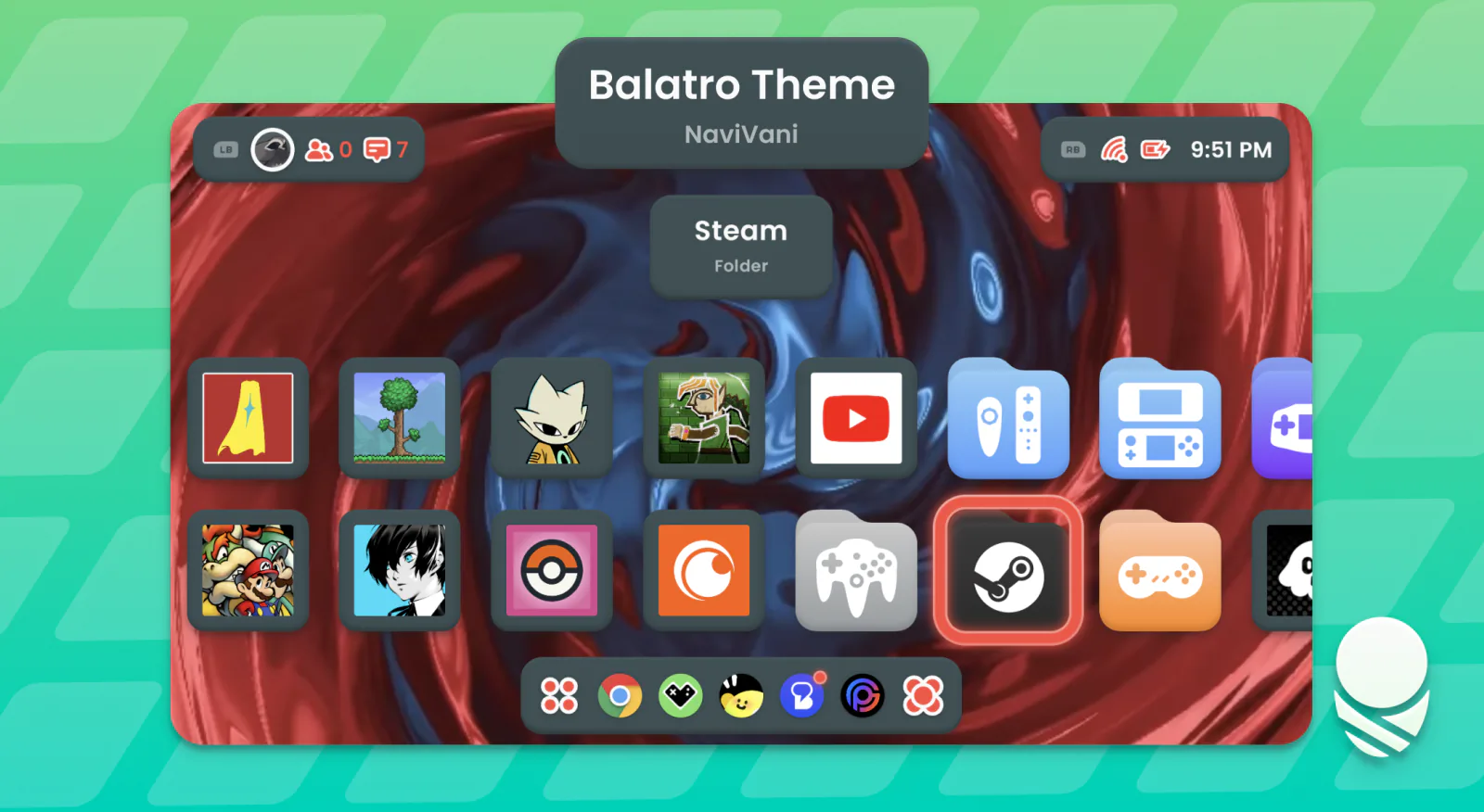
Most themes from Silk work with the new design, and the new layouts give them even more room to show off. Here are a few community themes looking great in Cocoon 3!
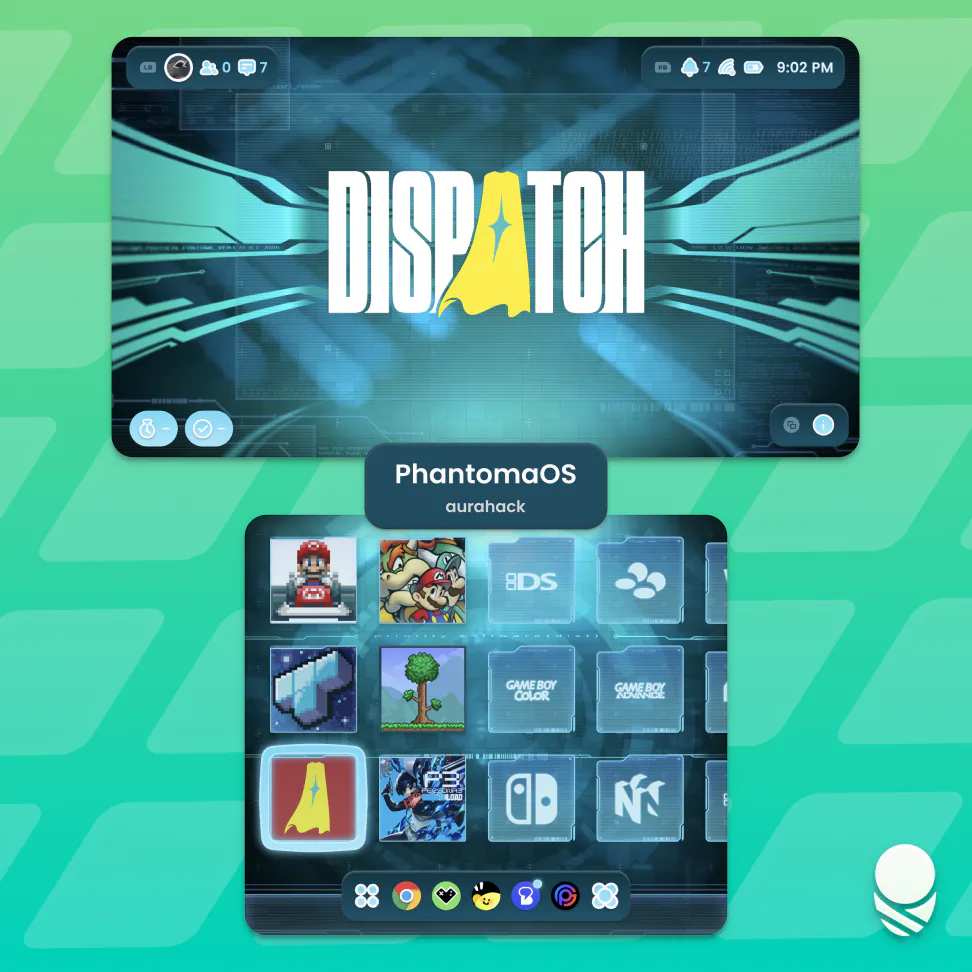
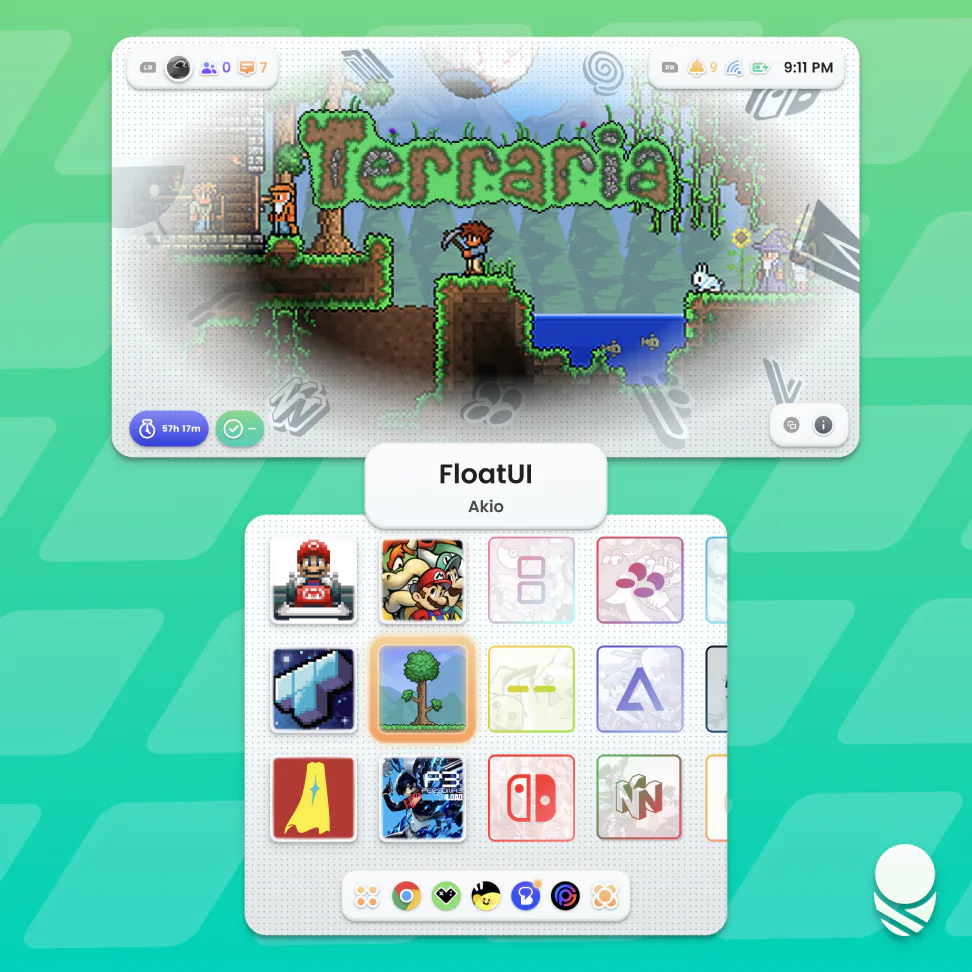
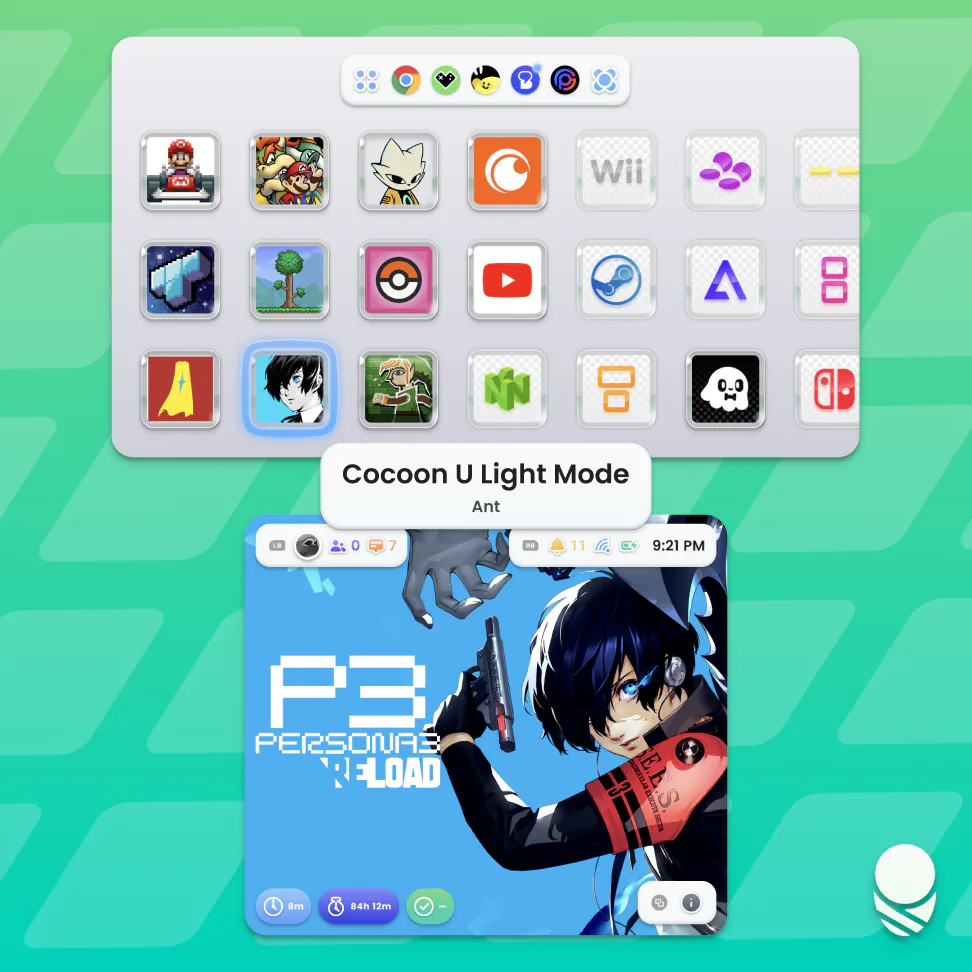
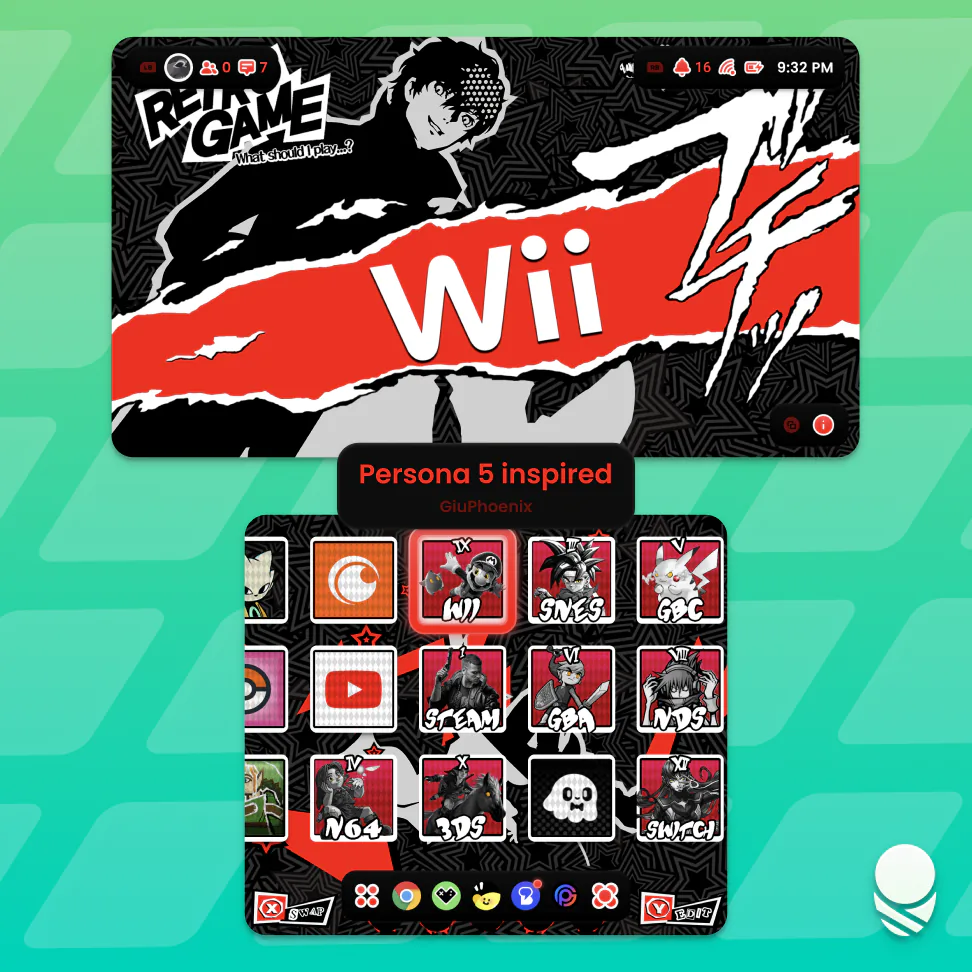
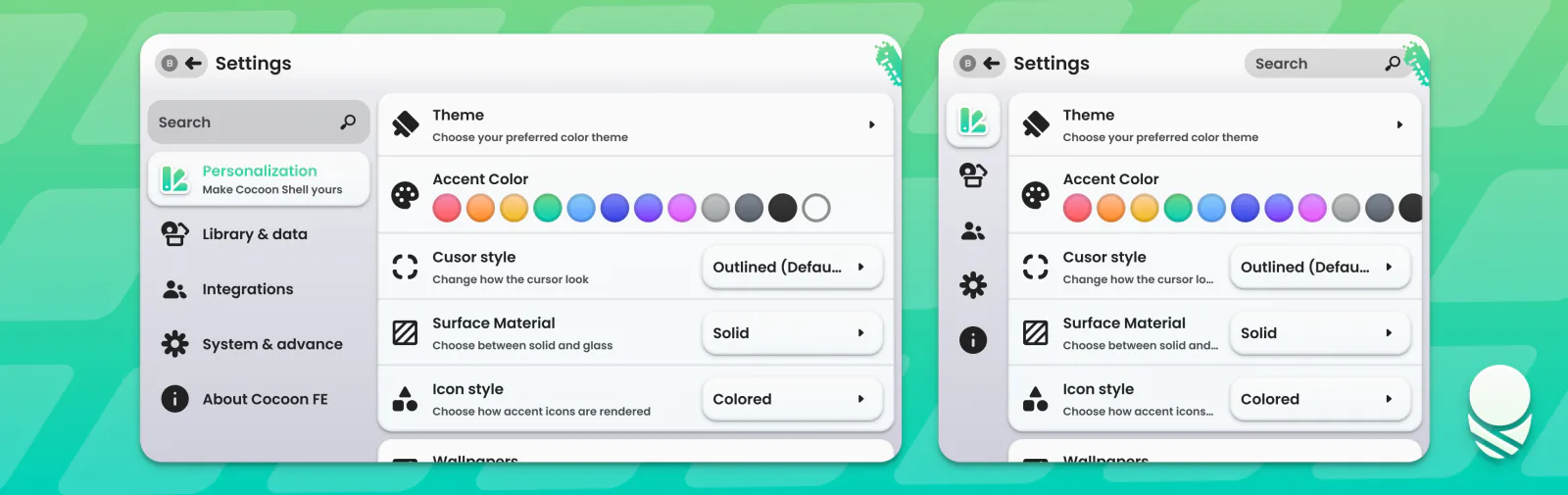
Settings has been reorganised to be easier to navigate. The categories are clearer, search gets you where you need to go, and dual-screen previews mean you can see changes without constantly scrolling up and down.
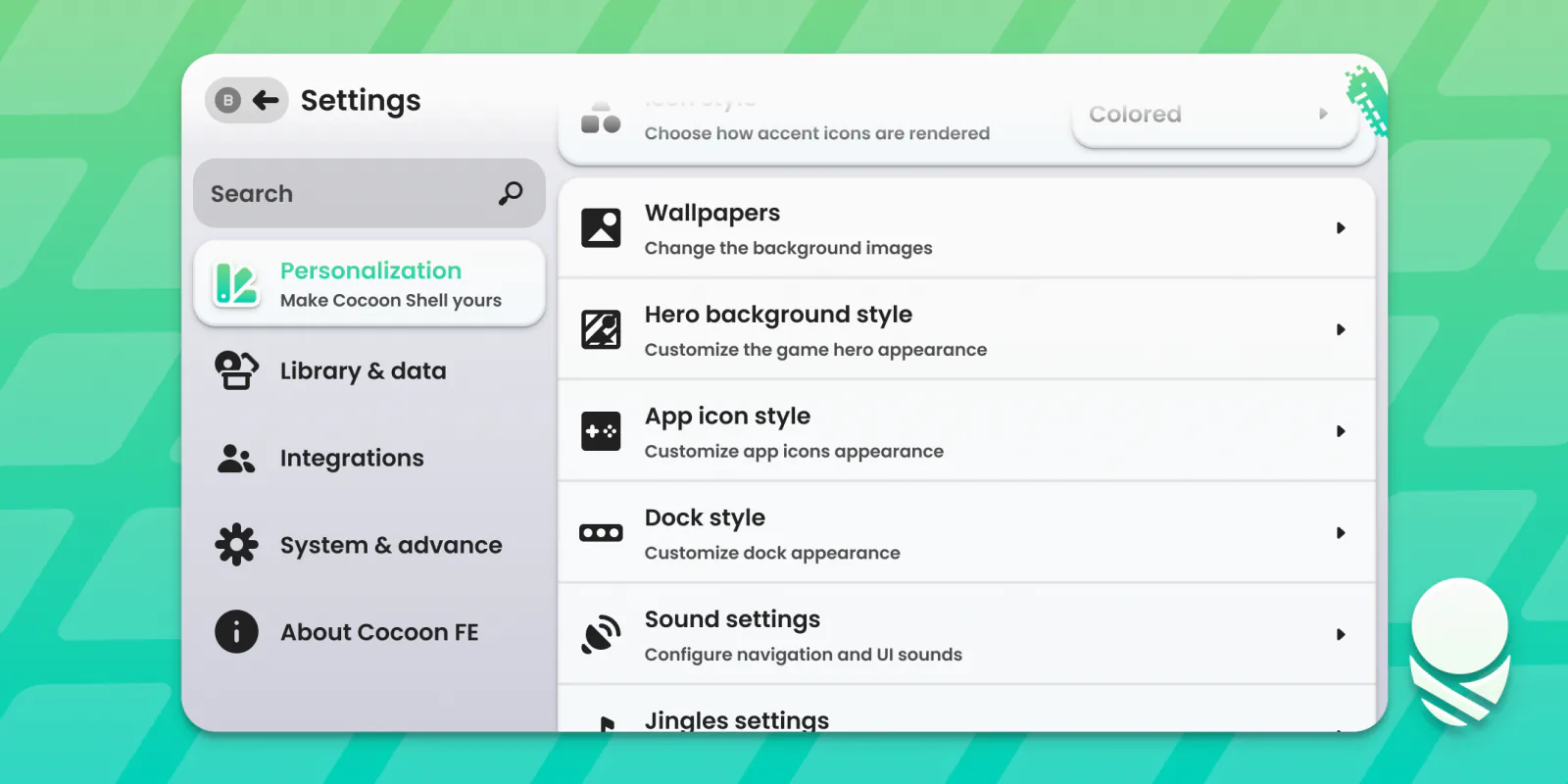
Firstly, glass!
Change Surface Material in Personalization Settings to Glass, then have a play with the new Glass Options. You can adjust the blur, refraction, tint, and rim highlight to get it sitting just right with your theme.
Glass is experimental. The feature is stable, but there are still places that need refining, especially in Single Screen Mode. Expect a few quirks, and please send us your feedback and bug reports so we can keep improving it.
Faster, Smarter Scraping
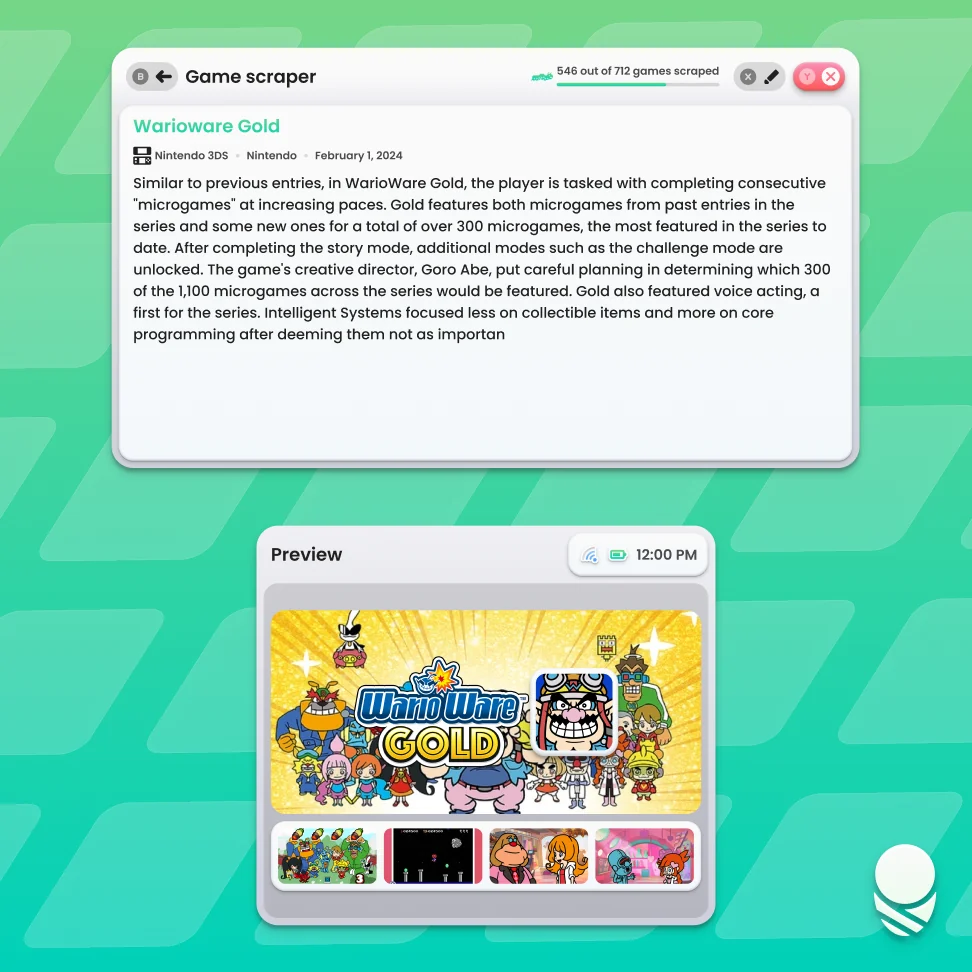
Say hello to the new scraper interface! Settings are reorganised to be more intuitive, sources can be rearranged by priority, and you can choose exactly which media types are included. If you don’t care for screenshots or videos, just leave them out.
LaunchBox, IGDB, and HowLongToBeat join the existing sources. Scraping is more reliable and accurate, and it is now seriously fast, reaching up to 50 games a minute!
The scrape menu also shows a live preview of whatever Cocoon is working on. If it matched the wrong game, you can quickly change the name and refetch. If the match is right but you don’t like the artwork, jump straight into editing it.
Library rescans are faster too, with smarter arcade name mapping and much less work happening when nothing has changed.
ES-DE linking
ES-DE linking has had a big performance and usability overhaul. You can prioritise ES-DE over Cocoon’s scraped assets, automatically check for updates when Cocoon starts, and use platform aliases for matches such as Steam to Windows. Video mapping has been fixed too.
Cocoon now follows ES-DE’s handling for game directories. Folders ending in formats such as .m3u or .easyrpg are treated as a game and launch the matching file inside. If there is no matching file, Cocoon passes the whole folder to the player. Linked artwork also understands names with game extensions, such as Game.m3u.png.
Sessions, Performance, and Reliability
Game sessions now end automatically after 30 seconds without activity, so there is no need to manually close every session. If Android kills Cocoon because memory is tight, active game sessions and their playtime are restored when you come back. Now Playing recovers as well.
Cocoon frees up everything it can while it is in the background or while Now Playing is open. That means less CPU, GPU, and memory use while you play, which helps game performance, battery life, and stability on devices with less RAM.
Navigation and grids have been heavily optimised across the board, even with large libraries and animated artwork. Rescanning does less unnecessary work, Discord authorisation is more reliable after a crash, and Cocoon should no longer get stuck asking you to reconnect.
There is also full JamesDSP support for anyone using it to tune their handheld’s audio.
Thank You!
Project Metamorphosis has touched almost every part of Cocoon, and it wouldn’t be here without all the testing, feedback, themes, bug reports, and patience from the community. We can’t wait for everyone to try Cocoon 3 and see what you make with it!
Join the Discord to share your setup and let us know what you think. If you’d like to support development, check out our Ko-Fi.
Download Cocoon 3