
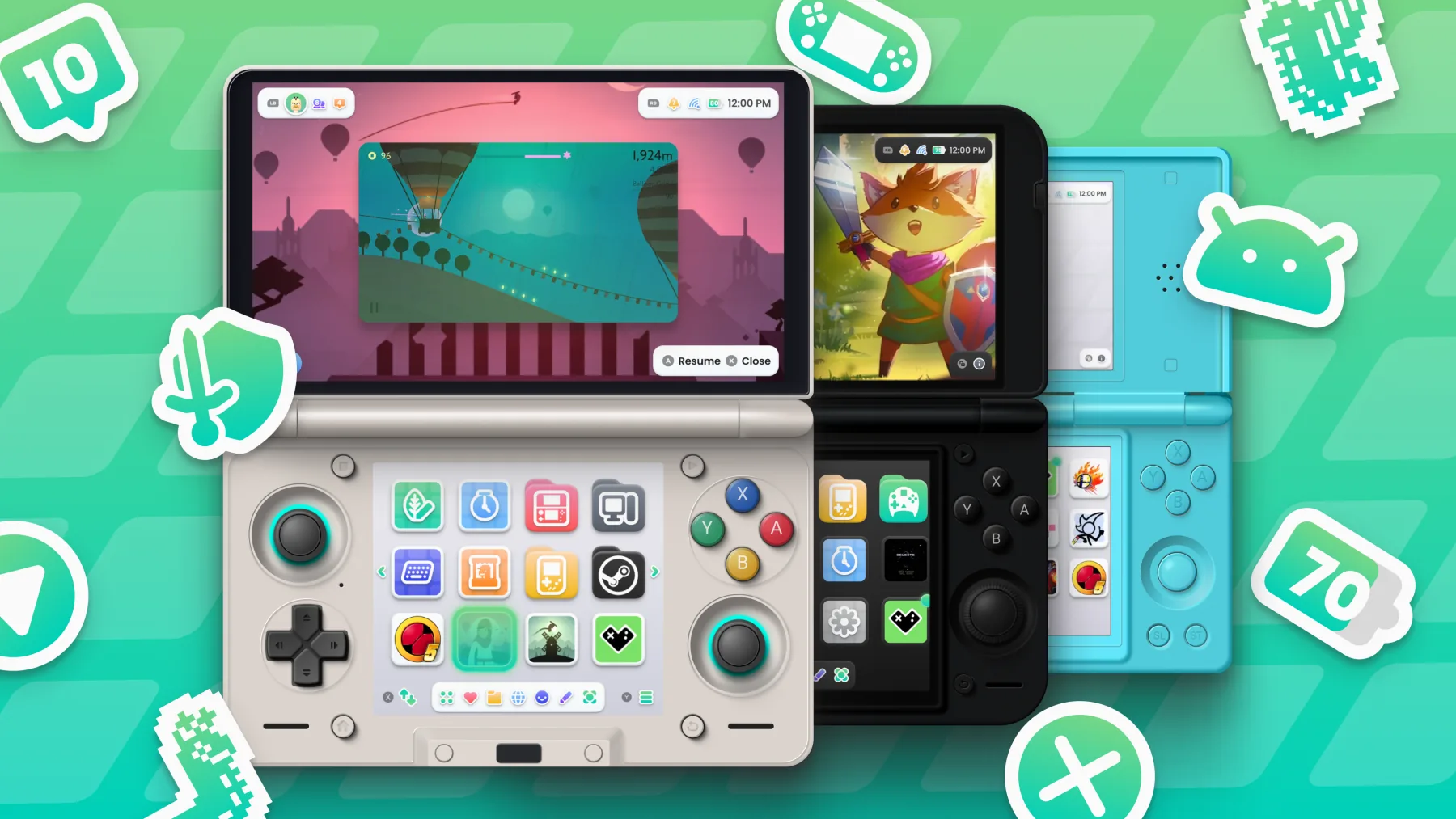
Cocoon 3.1 is here! This update is packed with new ways to jump between your games, plus a much easier way to edit your grid.
Download Cocoon 3.1Enhanced Device Access
Enhanced Device Access is available on AYN, Retroid and some AYANEO devices (for now). It lets you jump in and out of your games right from the home screen.
Suspend and Resume
Press Home in a game and Cocoon suspends it on the home screen, showing where you left off. Press A to jump back in, or X to close it.
Pressing Home again takes you straight back into your game.
Closing Games
Done for the day? Press X on a running game to quit it, and its companion apps close too. If you’ve got more than one game open, Cocoon can close them all when you switch.
Swap Screens
On dual-screen devices, pick Swap Screens from a running game’s menu to move it to the other screen.
Optimisation
Cocoon has been optimised to run smoothly on lower-end hardware like the Anbernic RG DS and Retroid Duo Lite. Getting around Home and the menus feels much smoother. While you play, Cocoon pauses its animations and frees up memory for your game.
If animated artwork still slows your device down, turn on Disable Animated Assets in Settings → System & Advance. It’s on by default on slower devices.
Cocoon now comes with an optimisation profile, a list of the code Cocoon uses most. When the profile is installed with Cocoon, Android compiles that code during the install, and Cocoon runs at full speed from the first launch. Without it, Android only optimises apps overnight while your device charges, and Cocoon can stutter until then.
Easier Grid Editing
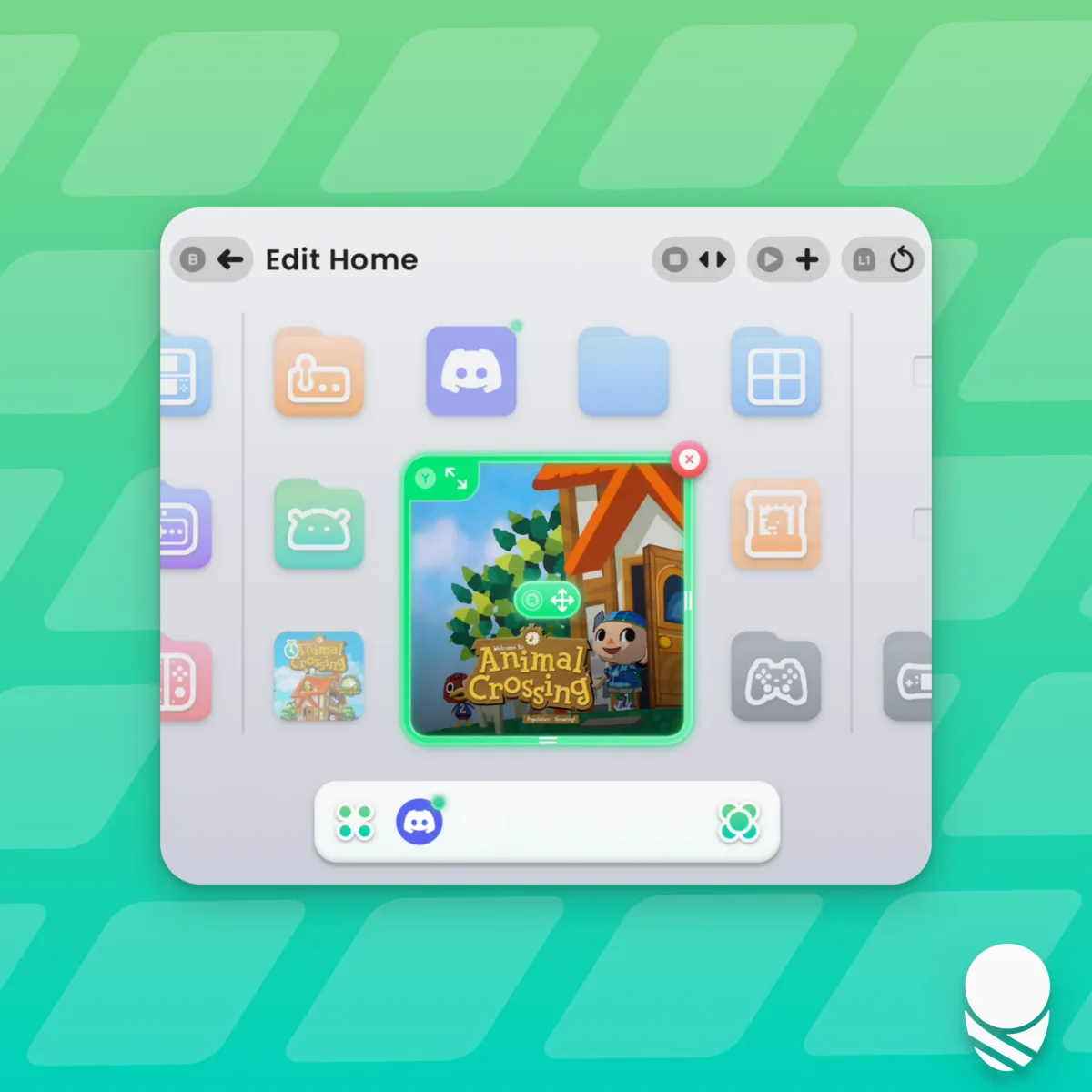
Editing your grid is much easier now. Hold A, or keep holding a tile, to start editing. Move and resize games with touch or a controller, and the games around them move out of the way to make room. Arranging your grid is a lot less restrictive than before. Press X to remove a tile, and use undo if you change your mind.
Home is now made of pages. Prefer scrolling? Turn on Scrolling navigation in Settings → Personalization → Grid.
Heads up: zoom levels no longer have their own layouts. Home and each folder now keep one layout, and when you update, Cocoon will ask which of your layouts to keep. You can still zoom in and out, and your layout stays as you left it.
Automatic Updates
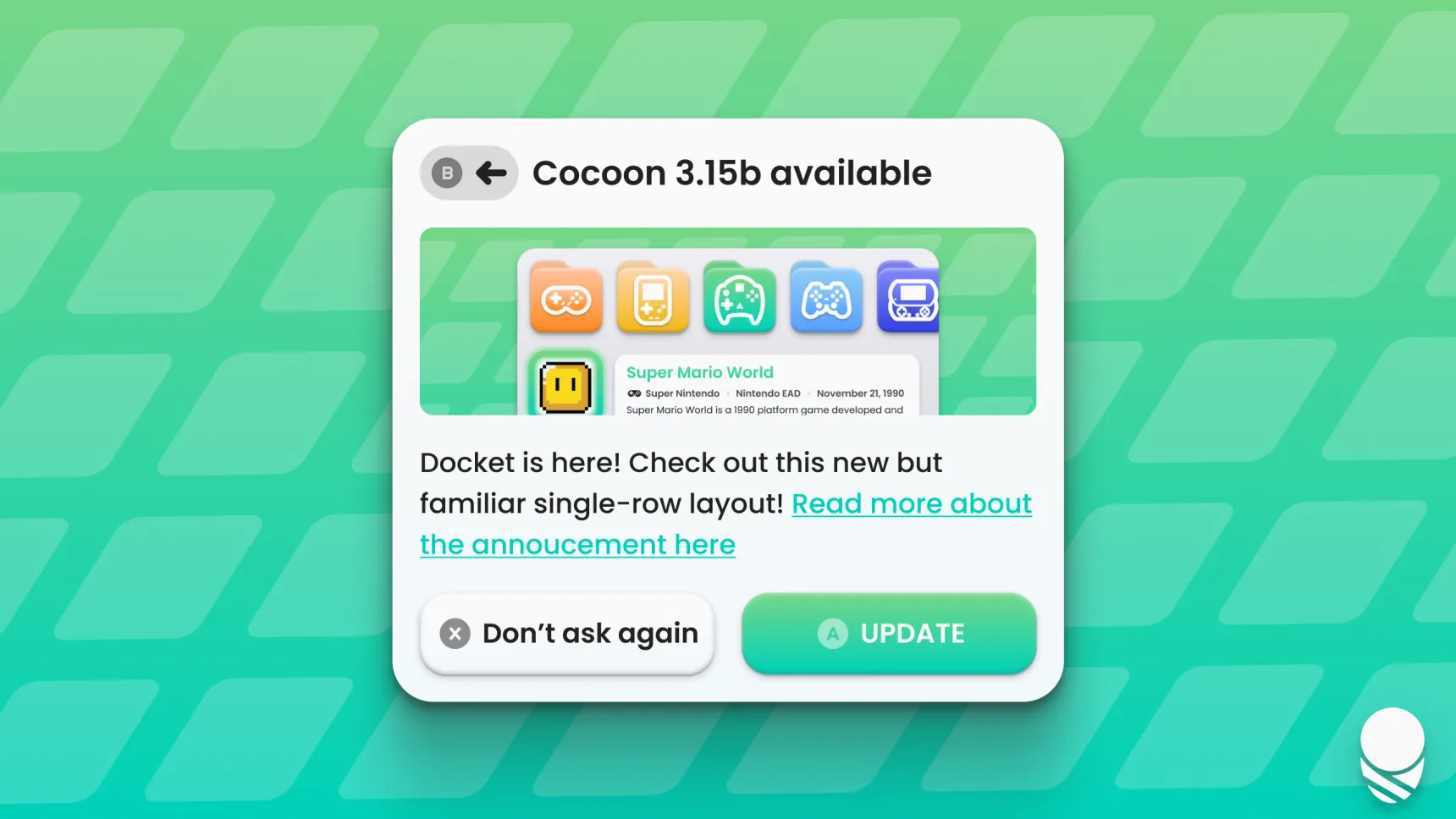
Cocoon can now update itself! When an update is out, you’ll see what’s new and Cocoon installs it for you, along with its optimisation profile. You can check for updates any time in Settings → About.
If you install an APK yourself, Cocoon will offer an optimisation patch. It reinstalls the same version with the profile, closing for about a minute and reopening by itself.
If you use Obtainium, we recommend switching to Cocoon’s own updater. That way every update is optimised automatically, and you won’t be asked for the patch each time.
New Icons
Every system icon has been redrawn, and there are plenty of new ones. Folder icons now have a white outline and are filled with the folder’s colour.
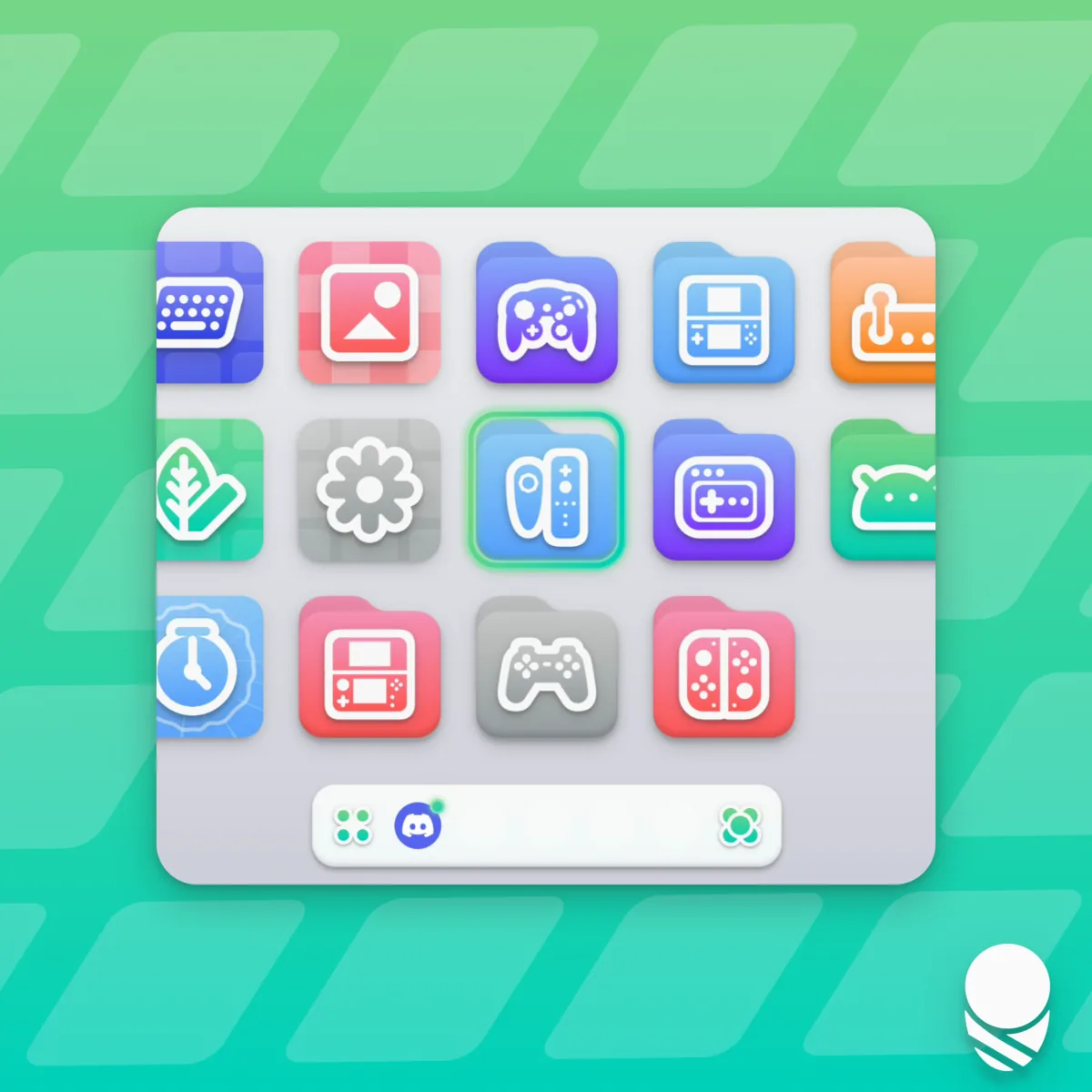
Apps can have custom icons now too. Use Edit App Icon in the App Drawer to pick a Cocoon Icon in any colour, or an icon from an installed icon pack.
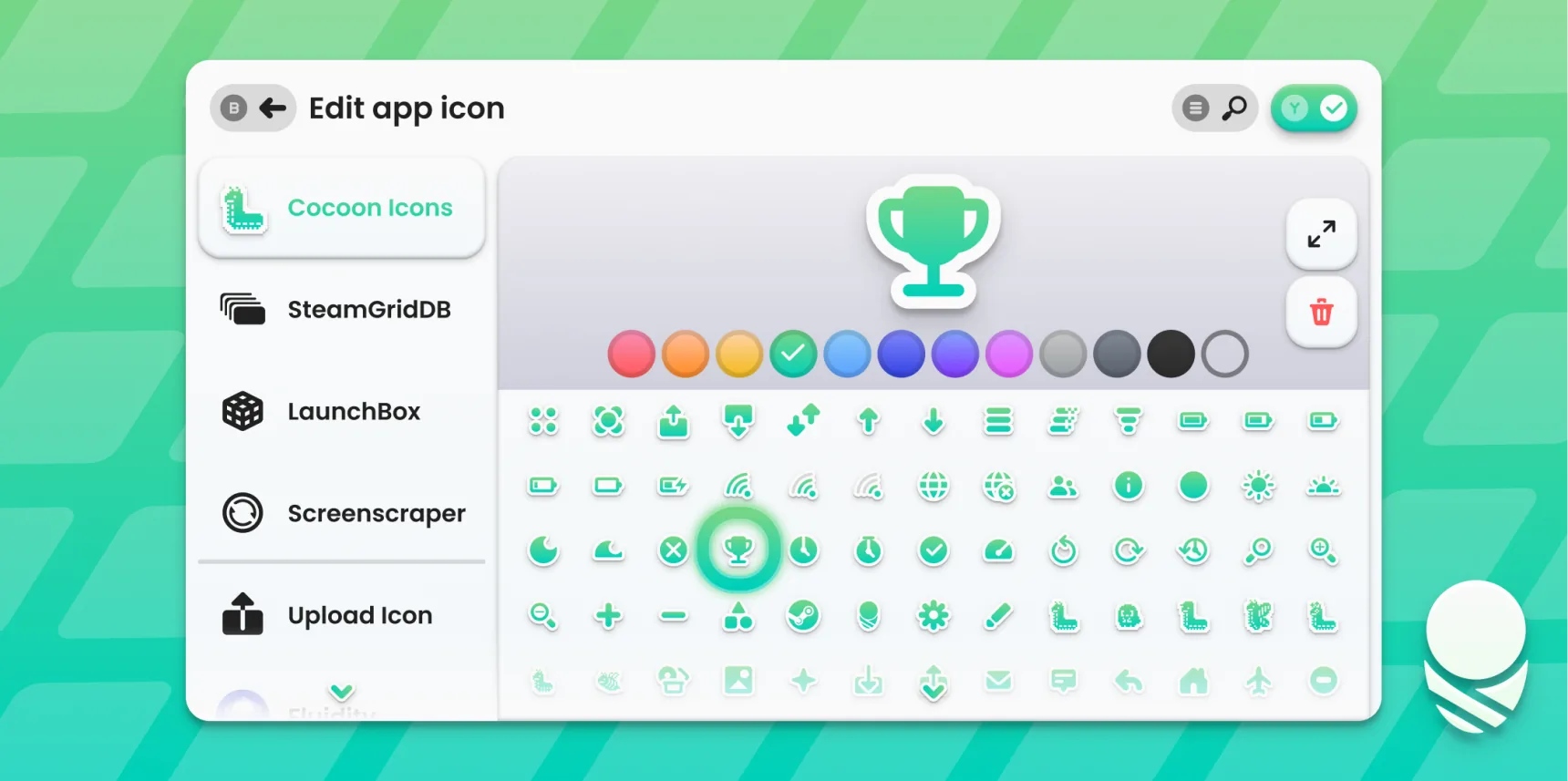
Dock apps can also get their own icon with Edit Dock Icon.
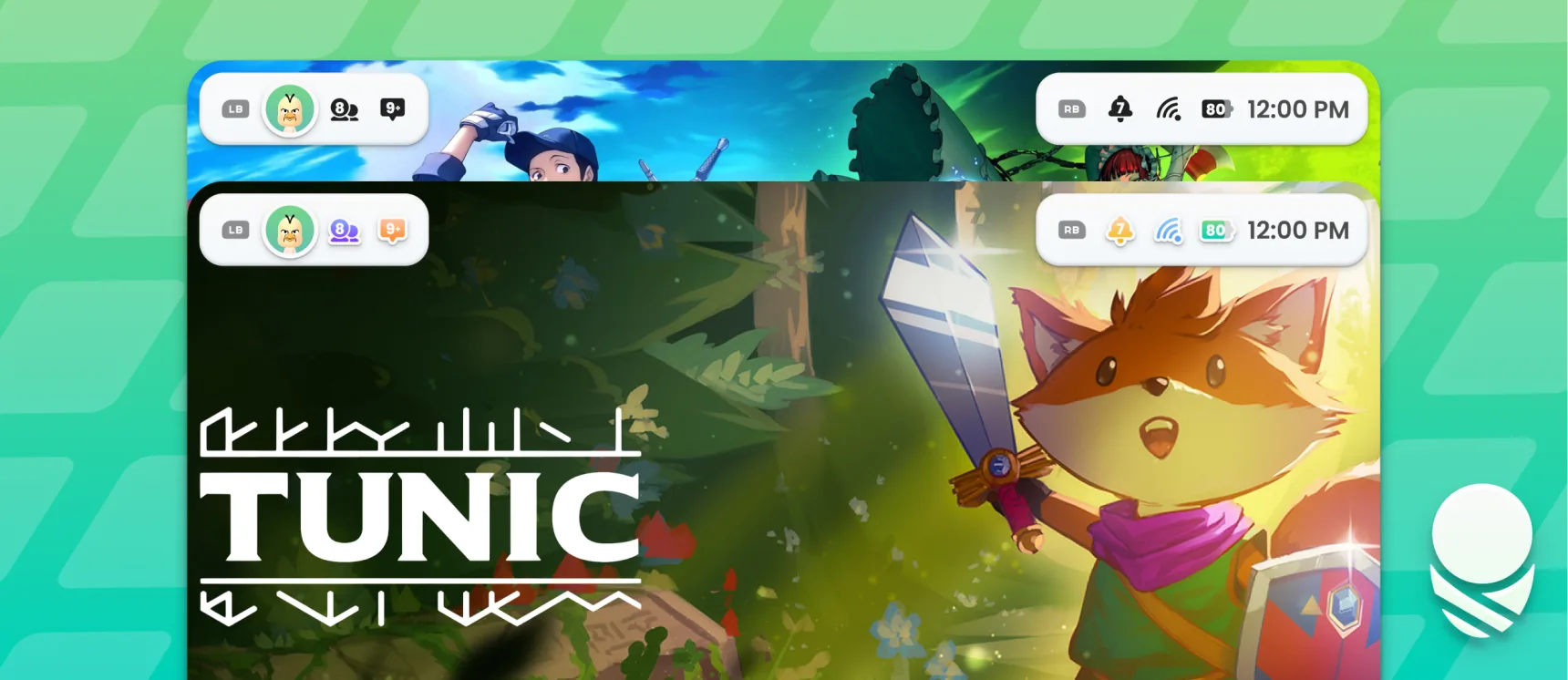
The status bar has new icons with your counts inside them, and the battery shows its exact percentage. Below 10%, the battery flashes an exclamation mark.
Launch Animation
Games now launch with a brand new animation! The game’s artwork grows to fill both screens as it opens. When you’re done, Cocoon takes you back to the game you were playing.
Log and Picnic
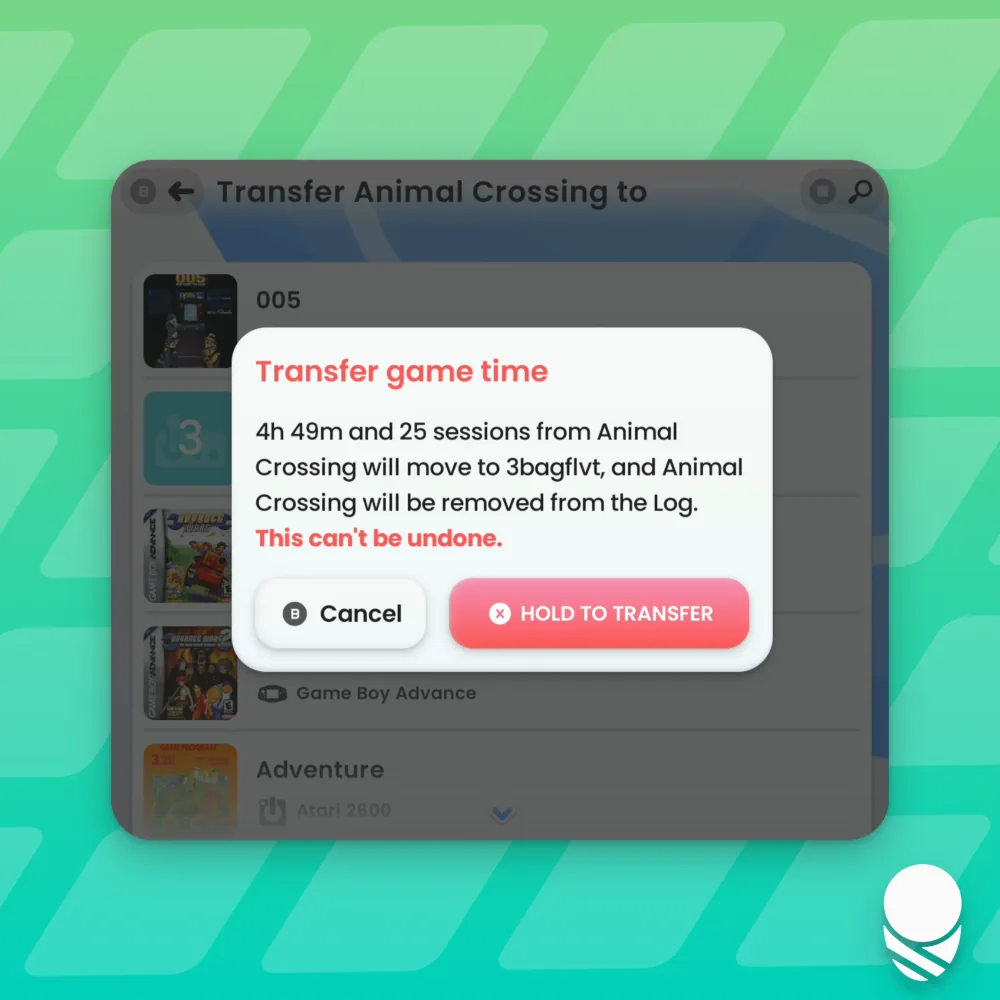
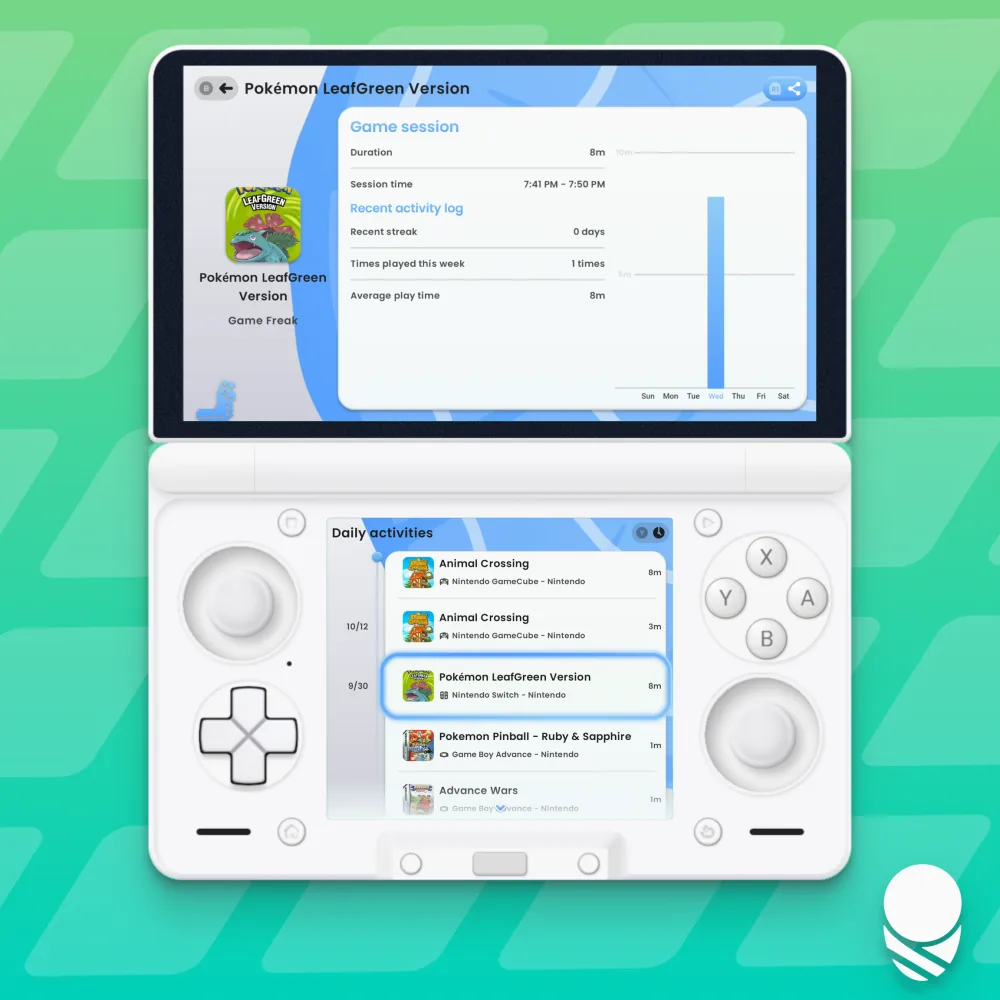
Log has a new Transfer game time option in its settings for moving a game’s playtime to another game. Press Select to search, and the weekly charts now show more detail.
Picnic screenshots now stay with a game after you remove its ROM.
Single Screen Mode
Single Screen Mode now hides settings that only apply to dual screens, and Launch no longer asks which screen to use.
First-time setup suggests 2 rows on a single screen, and Home opens on the zoom you pick. In one-row mode without the hero split, logos are bigger and folders show theirs too.
With Hero Wallpaper on, the dim only shows behind hero art and changes with each hero. Suspended games sit in the bottom left corner, and a running game shows a red X on its tile to close it.
Fixes
We’ve fixed a lot of bugs too:
- Reopening a player after an Auto mode session ends no longer tracks the old game
- Refetch Platforms works on libraries set up before February
- Scanning no longer adds a second platform folder to Home
- Games with hundreds of achievements no longer slow your device down
- Players and themes work properly in a second user or work profile
- Touches in the App Drawer stay in the App Drawer
- Artwork in the Y menu and info screenshots is sharp again
- Tapping the glance bar on the hero steps through a game’s info
- Delete Folder works with touch
- Swapping screens with a folder open plays the swap animation
- Glass pills are no longer tinted too heavily on video wallpapers
- Sessions for hidden games and uninstalled apps open in Log again
- The playtime widget shows its full weekly total
- Hold to confirm buttons show their whole label
Silk also has spooky Halloween music until the end of October! 🎃
Thank You!
Thank you to everyone who tested the previews and sent us feedback!
Join the Discord to share your setup and let us know what you think. If you’d like to support development, check out our Ko-Fi.
Download Cocoon 3.1